
Manage a project
This page is for a project’s managers. It walks through a project’s day-to-day work and links to the pages that cover each step in detail.
Most of it works in any project. Members, assignments, requests and disputes between people need an organisation project. See Organisations, the hub and sync.
The manager’s loop
Section titled “The manager’s loop”flowchart LR A["Add a dataset"] --> M["Apply a model<br/>(optional)"] M --> S["Assign work"] S --> L["People label"] L --> D["Settle disputes"] D --> P["Publish a version"] P -.->|"new recordings,<br/>another round"| A L -.->|"a question"| Q["Ask a colleague"] Q -.-> L
The project home
Section titled “The project home”Opening a project lands on its home. Choose Home in the sidebar to come back to it.
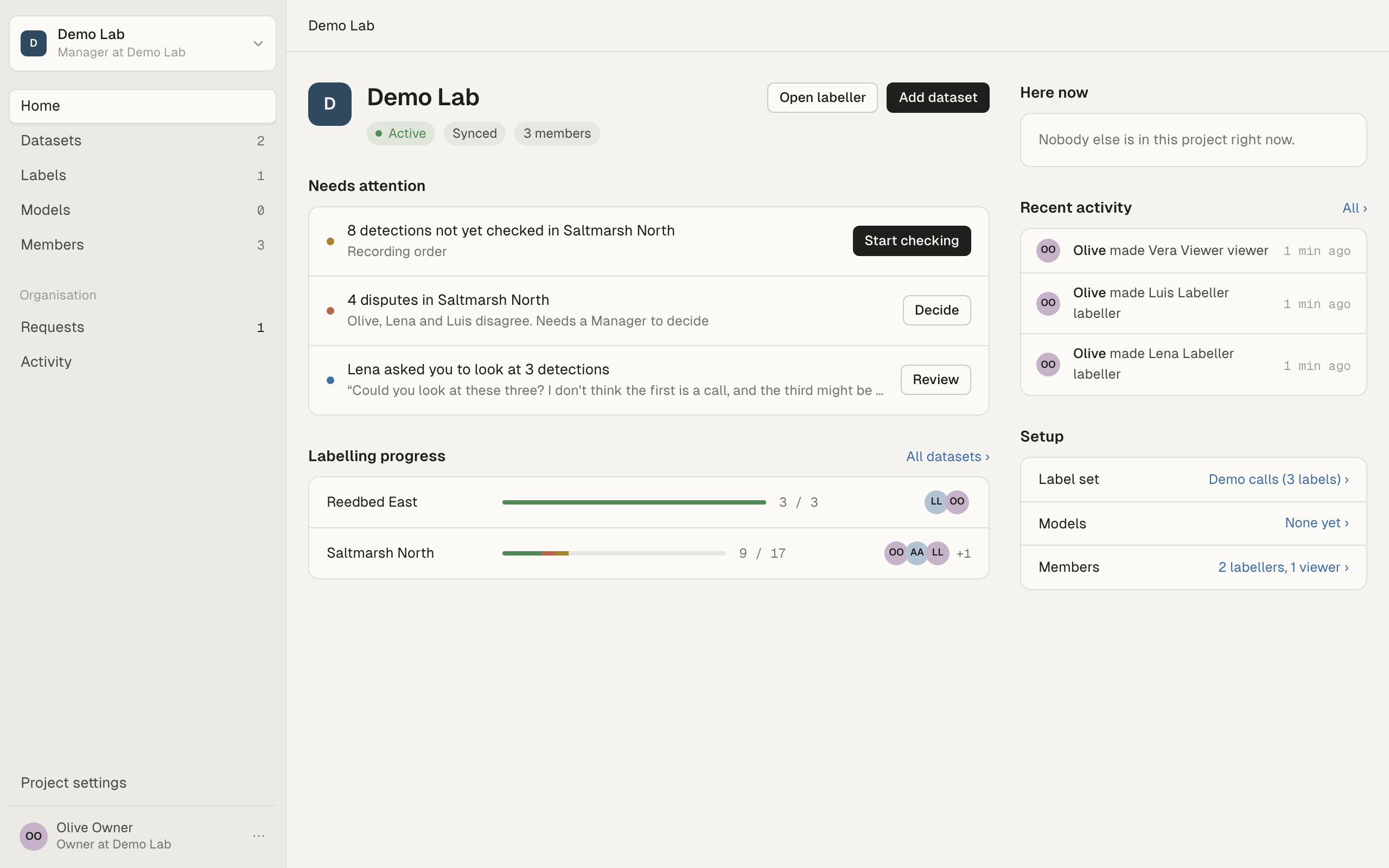
The top shows the project’s name and description, and badges: Active or Archived, the sync state (“Synced”, “Offline” or what is waiting), and how many members it has. In a project on this computer only, the sync badge says “On this computer only”.
On the right of the header:
- Open labeller opens the first dataset with events still to check. If there are none, it opens the dataset worked on most recently.
- Add dataset is there for managers of an active project.
A project with no datasets yet shows three steps instead: add a dataset, apply a model, start labelling. See Create your first project.
Needs attention
Section titled “Needs attention”This list says what is waiting for you. Each row has one button.
| Row | Example | Button |
|---|---|---|
| Events not checked | “120 detections not yet checked in Saltmarsh North” | Start checking |
| Disputes | “3 disputes in Saltmarsh North”, then “Lena and Luis disagree. Needs a Manager to decide” | Decide (managers only) |
| Requests for you | “Lena asked you to look at 3 detections” | Review |
| Missing audio | “4 recordings missing on this computer in Reedbed East” | Fix |
The “not yet checked” rows count every event in the dataset that nobody has answered, whatever made it. They appear only for datasets you can label. If you have an assignment in a dataset, its row comes first and counts what is left of your assignment, for example “8 detections assigned to you not yet checked”. Start checking then opens just that assignment.
Decide opens Events on that dataset with only the disputed events. It doesn’t change your saved session. See Disputes and settling them.
Review opens the request when there is one, or the Requests page when there are several. See Ask a colleague.
Fix opens Find missing audio for that dataset. The row says why the files are missing, for example that a drive isn’t connected. In an organisation project it adds “Others can still label”: audio is missing only on your computer. See Missing audio and finding it again.
When there is nothing to do, the list says “Nothing needs you right now.”
Labelling progress
Section titled “Labelling progress”One row per dataset, by title.
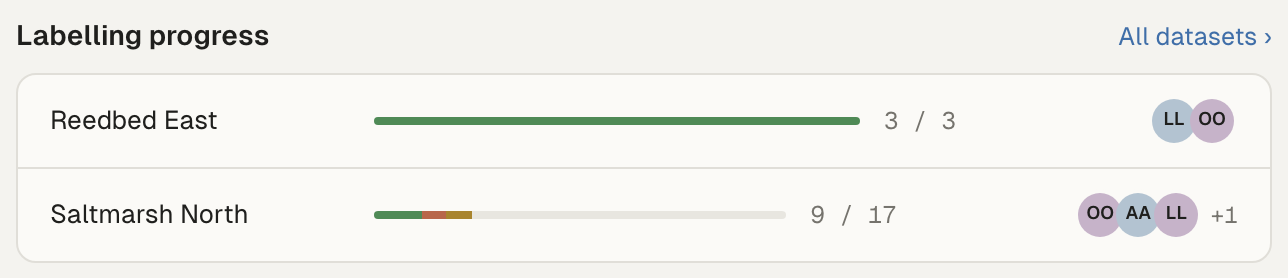
- The bar shows the dataset’s events: confirmed with a label, answered Nothing, and Unsure, each in its own colour.
- The count is checked events out of all events, for example “84 / 240”. An event counts as checked once anyone has answered it, disputed events included. A dataset with no events says “No detections”.
- A tag such as “2 of 5” means the dataset is narrowed: only 2 of the project’s 5 members can see it.
- Faces show who is on it: people who sent work to it lately, and people assigned to it. Hover over a face for the name. Assigned people say “(assigned)”.
The bar has no part for disputed events. They add to the count but leave a gap in the bar, so the bar can look shorter than the count.
Click a row to open the dataset’s Overview. All datasets opens the Datasets page.
Here now, Recent activity and Setup
Section titled “Here now, Recent activity and Setup”The right-hand column holds:
- Here now (organisation projects): who else is in the project now, and what they are doing, for example “Labelling saltmarsh_north”. It names the dataset by its short name, not its title.
- Recent activity (organisation projects): the last few things people did in the project. All opens the organisation’s home.
- Setup: the label set, how many models are registered, and the members by role. Each opens its page.
Here now and Recent activity need the hub. Offline they say “Shows when the hub can be reached.”
Add datasets
Section titled “Add datasets”Choose Add dataset on the project home or the Datasets page. Only managers can add datasets to an organisation project. See Add your first dataset and Datasets.
In an organisation project, a new dataset is visible to every member, as their role allows. Each member links it to their own copy of the audio. To limit it to fewer people, narrow it in the hub web app. See Projects, members and roles.
Apply a model
Section titled “Apply a model”A model gives people events to check instead of a blank recording. Register it once on the Models page, then apply it to a dataset. The run happens on the computer that applies it, and its events sync to everyone. See Register a model and Apply a model and map its output.
You can skip this step. People can draw boxes themselves in Recording.
Assign work
Section titled “Assign work”An assignment gives one person one part of one dataset: the whole dataset, a queue of events, or a range of recordings. Make them on Members: choose Change next to the person, then + Add an assignment. See Assignments.
A queue of events with Show set to Disputed is a way to hand disputes to someone else to look at again.
Watch progress
Section titled “Watch progress”- The project home: Labelling progress per dataset, with who is on it, and Here now.
- Members: each person’s role, when they were last active, what they are Working on now and what they are Assigned to. See Projects, members and roles.
- The labeller’s start screen: each person sees their own assignments with progress, for example “12 of 40 detections checked”.
- Datasets: a bar of answered events per dataset, its latest version and whether its audio is on this computer.
Settle disputes
Section titled “Settle disputes”When people’s answers on an event disagree, the event is disputed until a manager settles it. The same goes for a box someone moved or resized that another person drew. Disputed events show on the project home with Decide. That includes a moved or resized box, even when nobody’s answers differ. If fewer than two people have answered, the row says “Answers disagree” for it. See Disputes and settling them.
A dataset can instead let the latest answer count. See Let the latest answer count. That settles answers that differ, but not a moved or resized box: that still needs a manager.
Ask colleagues and answer them
Section titled “Ask colleagues and answer them”If you aren’t sure about an event, ask someone who labels the dataset, or ask everyone who does. When people ask you, the request appears under Needs attention with Review, and on Requests in the sidebar. See Ask a colleague.
Publish versions
Section titled “Publish versions”Publishing freezes a dataset’s answered events into a numbered version: v1, v2 and so on. Choose Publish v1 (or the next number) on the dataset’s page. Disputed events block publishing until you settle them or leave them out. See Published versions and exports.
Managers can always publish. Labellers can publish only if the project allows it, in Project settings under What each role can do.
Unpublished work
Section titled “Unpublished work”Answers and boxes that no version holds yet are unpublished. They are kept, and everyone in the project sees them, but nothing outside the project does. To see what has changed since the last version:
- The version picker in the dataset’s header shows a small number: the changes since that version.
- The dataset’s Versions tab says what has changed under Next version.
Archive a project
Section titled “Archive a project”When the work is finished, archive the project from Project settings: next to Status, choose Archive…. Nothing is deleted. See Archive and restore a project.
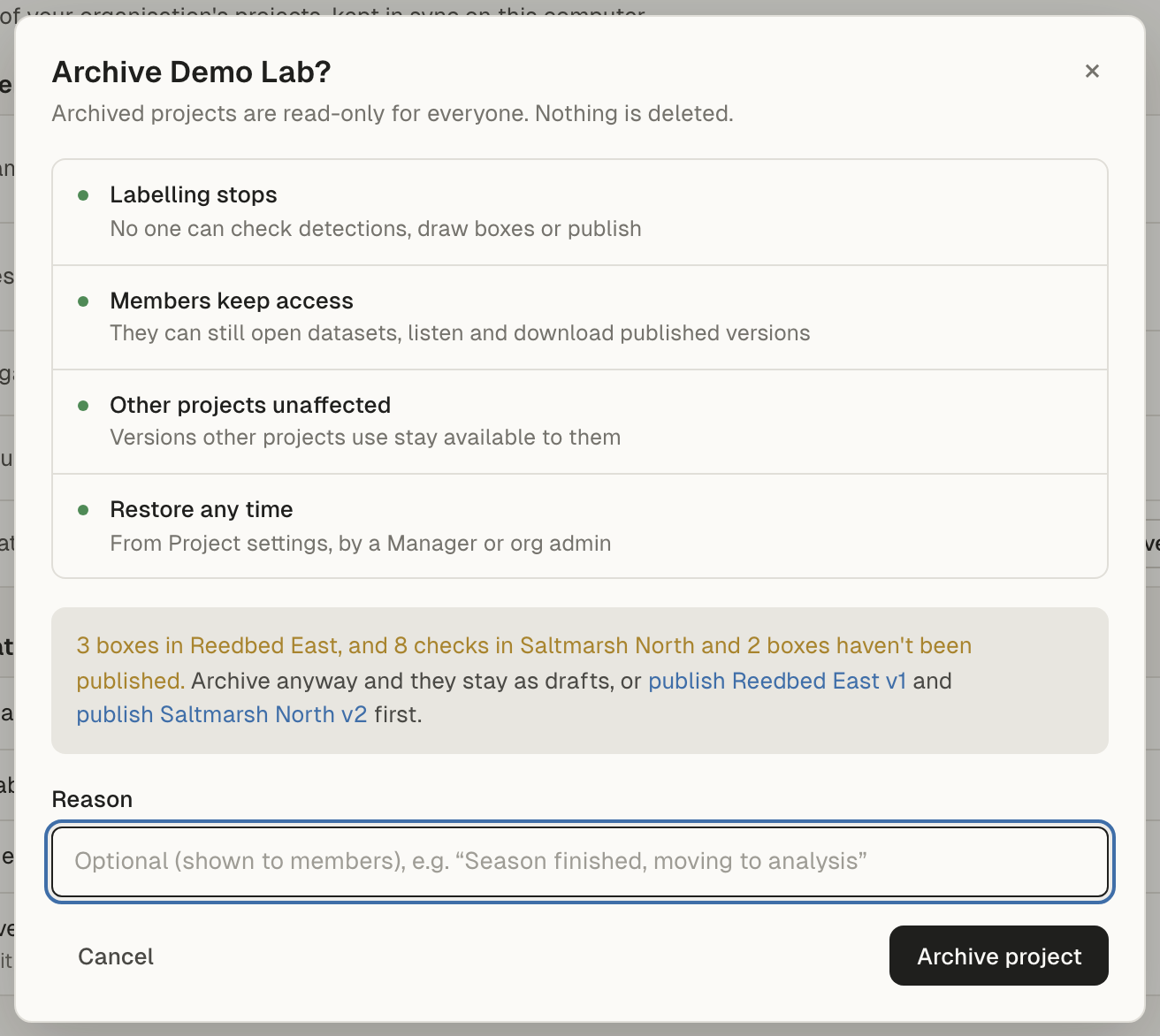
Before you archive, the dialog looks for unpublished work, for example “312 checks in Saltmarsh North and 24 boxes haven’t been published.” You can archive anyway, and the work stays as drafts. Or choose publish dataset vN to open that dataset’s Versions tab and publish first.
It also lists members’ computers holding changes that haven’t reached the hub yet, for example “Aoife Byrne (Aoife’s laptop): 5 changes waiting, last synced 3 days ago”. Archiving refuses those changes when they arrive. They stay on the member’s computer as refused changes, so you can ask them to sync first. The same list appears before you save a change to what labellers can do that takes labelling away from someone.
An archived project’s home shows its totals: recordings, events and how many are checked, unpublished work, and its published versions. Managers see Restore project there.
Troubleshooting
Section titled “Troubleshooting”No Add dataset button. Only managers add datasets, and not in an archived project.
No Decide button on a disputes row. Only managers settle disputes.
Here now and Recent activity are empty. They need the hub. Check that you are online. In a project on this computer only, they don’t appear.
A member’s work was refused after you archived or changed access. It is kept on their computer. Restore the project or their access and they can send it again, or ask them to export it and import it yourself.
A dataset is missing from Labelling progress for someone. They may not be able to see it. Check Change next to them on Members, and whether the dataset is narrowed.