
Datasets
A dataset is a set of recordings you label together. It belongs to one project. Its events, answers, labels and published versions all live with it. Its audio does not: each computer keeps track of where the files are on that computer. See Audio on this computer.
The Datasets page
Section titled “The Datasets page”Open Datasets in the sidebar. Each row shows:
- Dataset: its title, with its name in small monospace type when the two differ.
- Recordings: how many, and how many hours of audio.
- Checked: a bar of answered events (Confirmed, Nothing, Unsure, Disputed) out of all events, or “No events”.
- Version: the latest published version, or “None yet”.
- Who can see it: organisation projects only (see below).
- Audio on this computer: “All here”, “On Google Drive”, “N missing”, “Not on this computer” or “Drive not connected”.
Press / to search. The search matches the title, name, organisation and site.
Below the list, Versions used from other projects holds read-only datasets made from versions published elsewhere. See Published versions and exports.
To add a dataset, click Add dataset. See Add your first dataset. Only the project’s managers can add datasets. In a project on this computer only, you are its owner, so you can.
Title and name
Section titled “Title and name”A dataset has two names:
- Title: what people read, for example “Saltmarsh North”. Sift shows the title everywhere. If a dataset has no title, Sift shows its name instead.
- Name: a technical identifier, such as
saltmarsh_north. It uses lowercase letters, numbers and underscores. Files, exports and the hub’s paths use it. You choose it when you add the dataset, and it does not change.
You can change the title at any time on the Settings tab.
A dataset’s page
Section titled “A dataset’s page”Click a row to open the dataset.
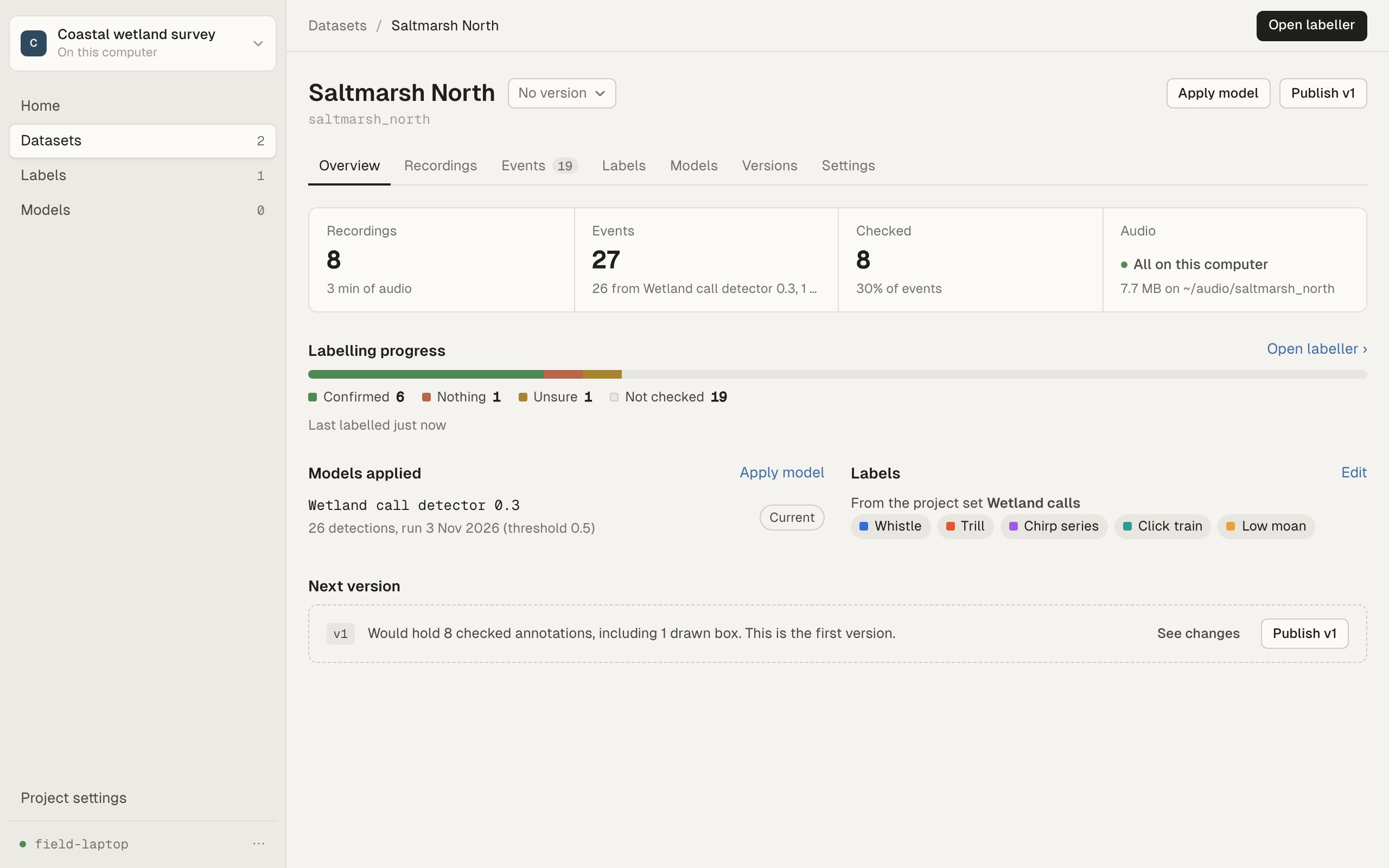
The header shows the title, then the organisation and the date range of the recordings. On the right:
- Open labeller (or press L) opens the labeller on this dataset.
- The version picker shows the latest version, or “No version”. A small number next to it counts changes since that version.
- Apply model lists the project’s models. See Apply a model and map its output.
- Publish v1 (or the next number) publishes a version. It is greyed out when there is nothing new to publish.
Overview
Section titled “Overview”Four tiles: Recordings, Events (the model’s detections, imports and boxes people drew), Checked (how many events have an answer) and Audio (whether the audio is here, on a network drive, on Google Drive or missing).
Below them: labelling progress, the models applied, the dataset’s labels, and what the next version would hold.
Recordings
Section titled “Recordings”Every recording in the dataset, 200 to a page.
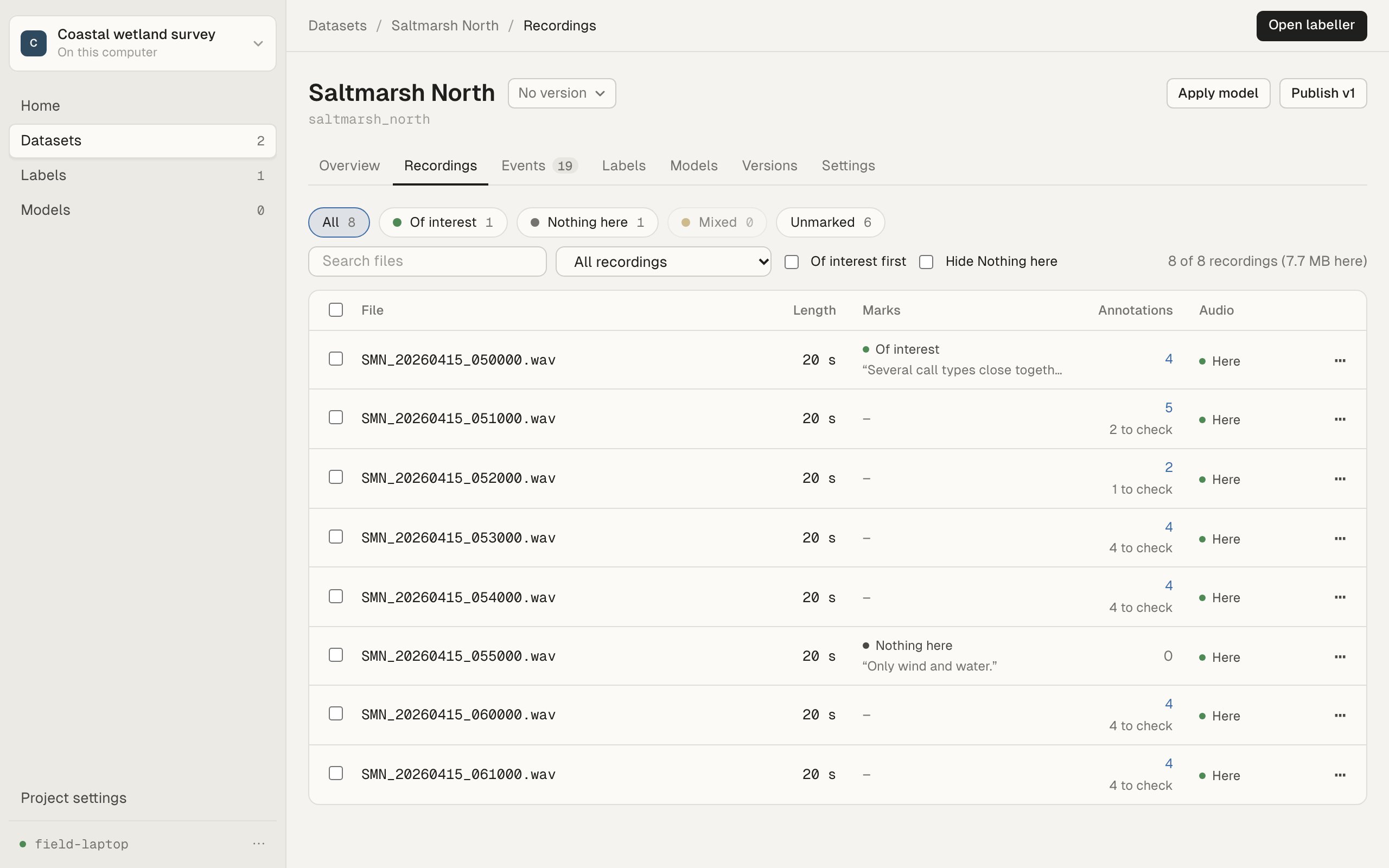
- The row of marks at the top filters by All, Of interest, Nothing here, Mixed (people marked it differently) and Unmarked, with a count for each.
- Search files filters by file name. The Show menu narrows the list, for example to recordings With detections to check or Not on this computer.
- Of interest first moves recordings marked Of interest (or Mixed) to the top. Hide Nothing here hides recordings marked Nothing here.
- The Annotations column counts each recording’s events. Click the number to see them on the Events tab.
- The Audio column says whether the file is Here, on a Network drive, Missing, or Not here.
Click a row to open that recording in the labeller. The ⋯ menu on each row lets you mark it Of interest or Nothing here, or Mark with a note…. Select several rows to mark them together with Mark…. Managers also see Set channel…. See Channels and the channel map.
If files are missing, a notice offers Find missing audio…. See Missing audio and finding it again.
Events
Section titled “Events”Every event, 50 to a page. Filter by outcome (Confirmed, Nothing, Unsure, Not checked, Disputed), label, origin (Detection, Imported, Drawn), run and minimum score. Sort By time, Highest score first or Recently changed.
Select events to answer them in bulk: Confirm its label, Nothing, Unsure or Clear my answer. Click a row to open that event in the labeller.
Labels, Models, Versions
Section titled “Labels, Models, Versions”- Labels: the dataset’s own copy of its labels. See Labels and label sets.
- Models: the models applied to this dataset, and the project’s models not applied yet.
- Versions: published versions and exports. See Published versions and exports.
Settings
Section titled “Settings”- Details: the name (fixed), Title, Organisation, Site and Notes. Click Save changes.
- Audio: where each source is on this computer. A Google Drive dataset shows its Drive folder here. See Google Drive datasets.
- Audio channels: the channel map. See Channels and the channel map.
- Organisation policies (organisation projects): When reviewers disagree and Site location. Only the project’s managers change these.
- Delete.
Who can see it
Section titled “Who can see it”In a project on this computer only, the dataset is on this computer only.
In an organisation project, the Who can see it column shows “Everyone”, “Managers only”, or the faces of the people who can. A tag such as “2 of 5 members” marks a dataset narrowed to fewer people than the project. A dataset can be narrowed, never widened. See Projects, members and roles.
If you can view a dataset but not label it, its page says View only. An archived project’s datasets say Archived.
Open requests
Section titled “Open requests”In an organisation project, a dataset’s row can carry request badges: “N for you” (requests to you) and “N open” (requests to everyone who labels it). Click a badge to open Requests. A recording in an open request shows a marker in the Recordings tab. See Ask a colleague.
Projects on this computer only have no requests.
Delete a dataset
Section titled “Delete a dataset”In a project on this computer only:
- Open the dataset’s Settings tab.
- Under Delete, click Delete….
- Type the dataset’s name to confirm, then click Delete dataset.
This removes the dataset’s recordings from the index, its events, answers and boxes, its published versions, and its labels and settings. It cannot be undone. The audio files stay where they are, and exports already on disk are not touched.
An organisation’s dataset cannot be deleted from the app. Archiving or deleting it happens on the hub, by an admin. See The hub web app.