
Channels and the channel map
Some recorders write several channels into one file: several hydrophones, a voice-note microphone, a patched-in stream. Usually one channel holds the signal you are labelling. The channel map tells Sift which one.
Everyone hears that channel. The labeller, models and exports all read it. For a Google Drive dataset, only that channel is downloaded.
Without a channel map, recordings with several channels are mixed down. The Recordings tab says so (“Mixed down from N channels”) with a Choose a channel link. Single-channel recordings need nothing.
The effective channel
Section titled “The effective channel”Each recording is read on one channel, its effective channel. Sift works it out in this order:
flowchart TD
  R["A recording"] --> O{"Has a manager set<br/>its own channel?"}
  O -- "Yes" --> C1["That channel"]
  O -- "No" --> M{"Does the dataset<br/>have a channel map?"}
  M -- "No" --> MIX["All channels mixed down"]
  M -- "Yes" --> T{"Is its start time known, and inside<br/>one of the map's date ranges?"}
  T -- "Yes" --> C2["That range's channel"]
  T -- "No" --> D{"Does the map have<br/>a default channel?"}
  D -- "Yes" --> C3["The default channel"]
  D -- "No" --> U["Needs a channel:<br/>nobody can listen to it yet"]
If the effective channel does not exist in the file (the map says ch3 and the file has 2 channels), the recording also needs a channel. Sift never falls back to a mix.
Channels are numbered from 0 and shown as ch0, ch1, and so on.
Edit the channel map
Section titled “Edit the channel map”Only the project’s managers change the channel map. Everyone else can read it.
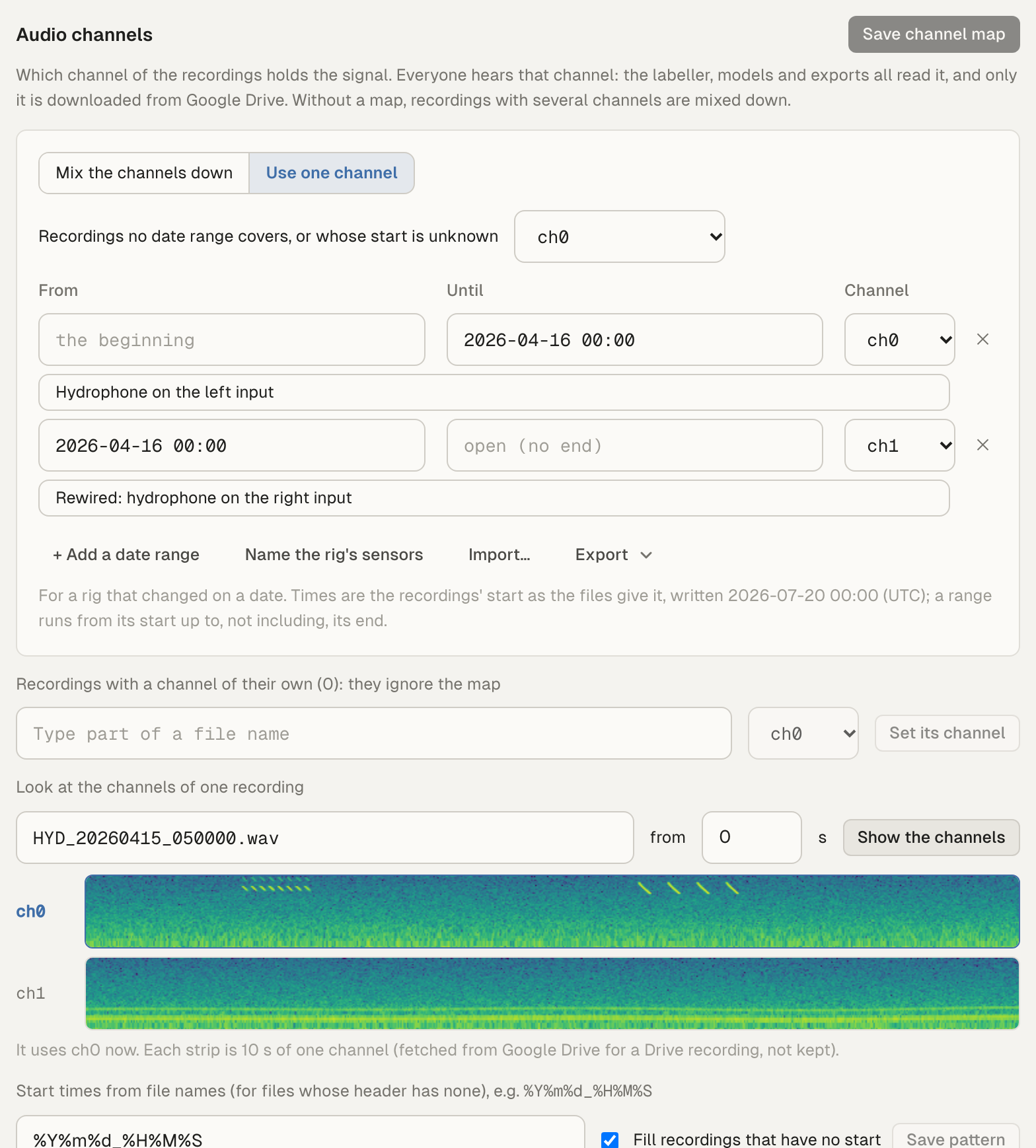
- Open the dataset’s Settings tab and scroll to Audio channels.
- Choose Use one channel. (Mix the channels down means no map.)
- Set the channel that every recording uses. Once you add date ranges, this becomes the channel for recordings no range covers, or whose start time is unknown. Choose No channel (they need one) if those recordings should wait for a decision.
- If the recorder’s wiring changed on a date, click + Add a date range. Fill in From and Until, written like
2026-07-20 00:00(UTC), and the Channel. Leave a time empty for an open end. A range runs up to, but not including, its end. You can add a note. - Read the preview under the editor. It says which recordings change channel and how many boxes and checked events they have.
- Click Save channel map, or Discard.
See which channel holds the signal
Section titled “See which channel holds the signal”Sift never guesses. Under Look at the channels of one recording, pick a recording, choose where to start (in seconds) and click Show the channels. You get a 10-second spectrogram strip for each channel. For a Drive recording these are fetched from Drive and not kept.
Start times
Section titled “Start times”Date ranges are compared with each recording’s start time, as the files give it. Sift reads it from the WAV header’s recording time, or a FLAC date tag. If the files have neither, set Start times from file names: a pattern such as %Y%m%d_%H%M%S, matched anywhere in the file name and read as UTC. Sift tests it against some of the dataset’s file names as you type. Leave Fill recordings that have no start ticked to fill existing recordings, then click Save pattern.
Recorders often write local time into the header. Write the ranges in the same clock as the files.
Sensors
Section titled “Sensors”For a rig with several sensors, click Name the rig’s sensors. You then list the sensors, choose which one This dataset labels, and give each range a sensor and a channel. A recording’s channel is the one the labelled sensor was on when the recording started.
Import and export
Section titled “Import and export”Import… reads a map from a file on this computer or from a Google Drive link: a Tethys deployment (XML), a rig’s channel-map YAML, or JSON. Nothing is saved by importing. The map lands in the editor for you to check and save. Export writes the map as Tethys deployment (XML) or JSON.
A channel for one recording
Section titled “A channel for one recording”A recording recorded differently from the rest can have its own channel. It then ignores the map.
- One recording: in Audio channels, under Recordings with a channel of their own, pick the recording, choose its channel, and click Set its channel.
- Several recordings: on the Recordings tab, select them and click Set channel…. Or use a row’s ⋯ menu. Choose a channel, or Follow the channel map to clear it.
The Recordings tab shows “Reading ch1” under a recording’s name, with “(set here)” when it has its own channel. Only managers see Set channel….
Recordings that need a channel
Section titled “Recordings that need a channel”A notice on the Recordings tab says how many recordings have no channel, with Audio channels…. The Show menu has Needs a channel. In Audio channels, the Needs a channel list lets a manager set each one’s channel. A default channel in the map covers them all.
In the labeller, Events skips these recordings, and the recording itself says “Nobody can listen to this recording yet”.
What a change does
Section titled “What a change does”- Boxes stay where they are. They are shown on the new channel. Check the preview before saving.
- Models applied later read the new channel. Each model run records the map it used.
- Published versions do not change. A version records each recording’s channel when it was published.
- Google Drive downloads: downloads of the old channel are no longer used. They are not deleted, so changing back costs nothing until space is needed. With Keep all channels of downloaded recordings on, nothing is downloaded again.
If two managers edit at once, the later save wins. If someone saved the map since you opened it, Sift says so: click Show theirs to start from their map, or Keep mine and save again to replace it.