
Audio on this computer
Sift reads audio where it already is. Adding a folder of recordings does not copy or upload anything. The project keeps track of the recordings. Each computer keeps track of where their files are on that computer.
Where audio can come from
Section titled “Where audio can come from”When you add a dataset, you choose where its audio is:
- This computer: a local or external drive.
- Network or cluster: a mounted path, such as
/mnt/cluster/project/audio. - Google Drive folder: read from Drive as needed. See Google Drive datasets. This option says “Not set up in this build” if your copy of Sift was built without Google sign-in.
- A published version: recordings and labels from another project or an export. See Published versions and exports.
Amazon S3 is listed but not available yet.
Where each file is stays on this computer
Section titled “Where each file is stays on this computer”For folder and network datasets, where each recording’s file lives is stored only on this computer. It is never synced and never sent to the hub. This is true in organisation projects too.
So when a colleague opens the same dataset on their computer, their copy of Sift needs to find the files on their own drives. A recording gets an audio fingerprint when its dataset is shared into an organisation (folder datasets), or when it is first downloaded whole (Google Drive). A recording with a fingerprint is recognised by its audio, so a renamed file, or a lossless FLAC copy of a WAV, is still the same recording. A recording without one is matched by its path, then by its file name. See Missing audio and finding it again.
The labels, answers, boxes and notes people make do sync (in organisation projects). The audio never does.
How Sift reads a recording
Section titled “How Sift reads a recording”When the labeller, a model or an export needs a stretch of audio, Sift tries these in order:
flowchart TD
  A["The labeller asks for a stretch of a recording"] --> B{"Is its file on this computer?<br/>(a folder file, or a local copy<br/>of a Drive file)"}
  B -- "Yes" --> R1["Read the file, on its channel<br/>from the channel map"]
  B -- "No" --> C{"Is that stretch in the<br/>Google Drive download folder?"}
  C -- "Yes" --> R2["Read it from the download folder"]
  C -- "No" --> D{"Google Drive dataset, signed in,<br/>file still on Drive?"}
  D -- "Yes" --> F["Fetch from Drive: the stretch,<br/>or the whole recording"]
  F --> G["Keep it in the download folder<br/>(under your size limit)"]
  G --> R2
  D -- "No" --> X["Not available: Sift says why<br/>and offers the fix"]
Sift reads each recording on its channel from the channel map. Without a map, all channels are mixed down. See Channels and the channel map.
When audio cannot be read, the labeller says why and offers the fix. For example: the file is missing, you are not signed in to Google, you are offline and the recording is not downloaded, or the recording needs a channel.
Storage settings
Section titled “Storage settings”Storage settings are for this computer only. Nothing in them is shared with your project or organisation.
To open them, click your name or computer at the bottom of the sidebar, then choose Storage….
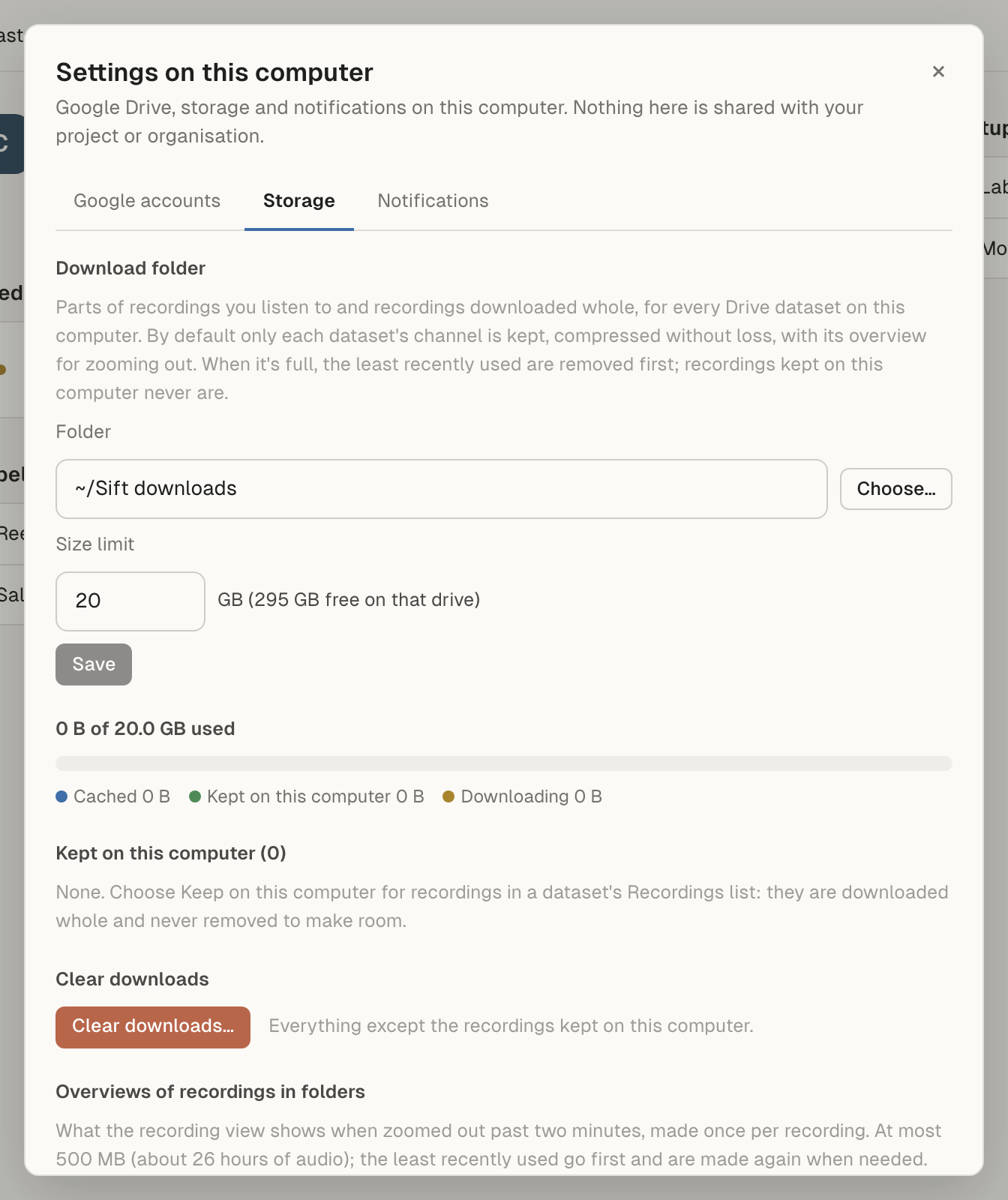
The Settings on this computer dialog also has Google accounts and Notifications tabs.
Download folder
Section titled “Download folder”One folder on this computer holds what Sift fetches from Google Drive, for every Drive dataset in every project. Recordings in ordinary folders are never copied into it.
- Folder: where downloads go. Click Choose… to pick another.
- Size limit: in GB. The suggested limit is 20 GB, or half the free space on that drive if that is smaller.
Click Use this folder the first time, or Save after a change. If you move to a new folder, tick Move what is downloaded to the new folder to take the downloads with you.
If you have not chosen a folder, the first Google Drive dataset you open asks: “Where should downloads from Google Drive go?”
By default only each dataset’s channel is kept, compressed without loss.
A bar shows how full the download folder is:
- Cached: stretches and recordings fetched for listening.
- Kept on this computer: recordings you made available offline.
- Downloading: downloads running now.
- Interrupted: cancelled or failed downloads. They keep what they fetched and continue from there next time.
What gets removed when the folder is full
Section titled “What gets removed when the folder is full”Before the folder goes over its limit, Sift removes downloads down to 90% of it. It removes first what no recording uses any more (an older copy of a file changed on Drive, or a channel no longer used), then the least recently used.
Sift never removes:
- recordings kept on this computer,
- a recording open in the labeller,
- a download running now.
If Sift cannot make room, it says what is holding the space. Stop keeping some recordings, or raise the limit.
Kept on this computer
Section titled “Kept on this computer”This lists the recordings you made available offline, with Stop keeping for each and Stop keeping all. A recording you stop keeping stays downloaded until room is needed.
By dataset, downloads, clearing
Section titled “By dataset, downloads, clearing”- By dataset shows the space each dataset’s downloads take, with Remove downloads.
- Downloads lists downloads running, waiting and finished, with Cancel.
- Clear downloads… removes everything downloaded except recordings kept on this computer. Anything else is fetched again from Google Drive when it is next opened. Labels and marks are not touched.
Overviews of recordings in folders
Section titled “Overviews of recordings in folders”The zoomed-out view in the labeller’s Recording view uses an overview of each recording, made once. For recordings in folders these are kept separately, up to a limit shown here. The least recently used go first and are made again when needed. Clear overviews removes them all.