
Published versions and exports
A version is a frozen copy of a dataset’s answered events. You publish one when the answers are ready to use: to train a model, to share, or to cite. Versions are numbered v1, v2, and so on, and never change once published.
Only publishing makes a version. Applying a model adds events to answer. It does not make a version.
flowchart LR
  A["Answered events<br/>in the dataset"] --> P["Publish: preview the counts"]
  P --> C{"Disputed events?<br/>(organisations: computers<br/>not synced?)"}
  C -- "Settle them, or leave<br/>them out explicitly" --> V["Version vN, frozen"]
  C -- "None" --> V
  V --> E["Export: a folder<br/>you can download"]
  V --> U["Used read-only in another<br/>project, after matching labels"]
What a version holds
Section titled “What a version holds”- Every event with an answer: a label, Nothing, or Unsure. Events nobody has answered are left out.
- Each label as its key, as it was when published. See Labels and label sets.
- The channel each recording was read on. A later change to the channel map does not change the version.
Who answered what is not included in exports.
Publish a version
Section titled “Publish a version”- Open the dataset. Click Publish v1 in the header (or the next number). The same button is on the Overview and Versions tabs.
- Read the counts: how many events were given a label, how many were answered Nothing, how many Unsure, and how many are not checked (left out).
- Add Notes: what changed, and what it is for.
- Click Publish v1.
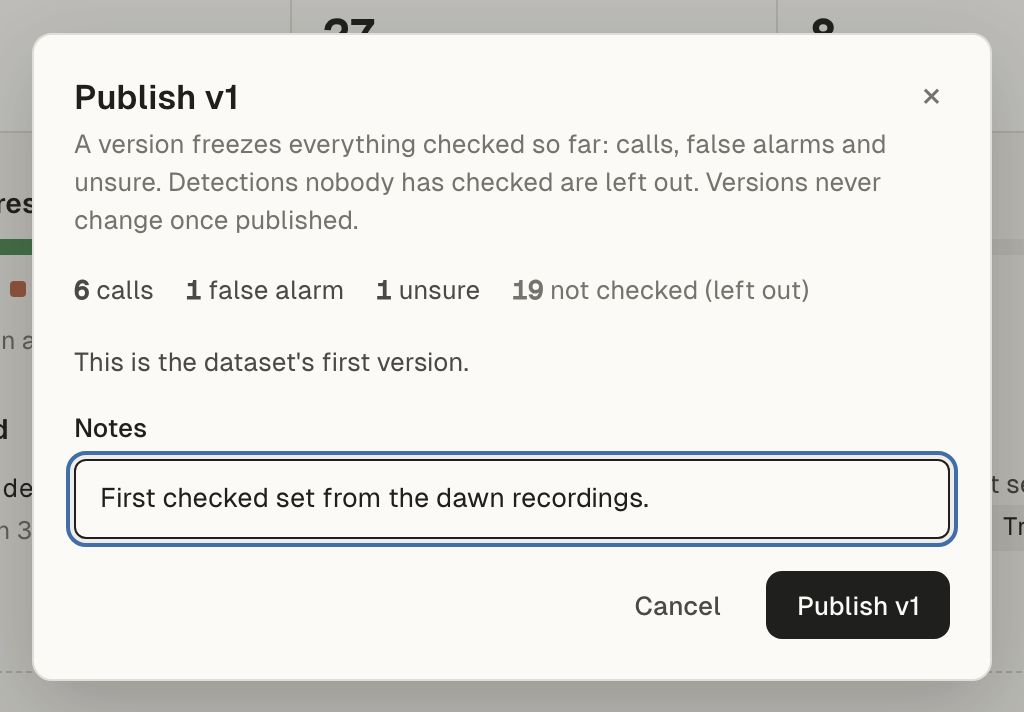
The button is greyed out when there is nothing new to publish: nothing has been answered yet, or nothing has changed since the last version.
What blocks publishing
Section titled “What blocks publishing”Disputed events. When people’s answers disagree, the event is disputed until a manager settles it. See Disputes and settling them.
- In a project on this computer only, settle disputed events before publishing.
- In an organisation project, you can also tick Leave these N disputed annotations out of vN. The version then lists exactly what was left out.
Computers not synced (organisation projects). Publishing syncs first (“Syncing and checking…”). The hub numbers the version from what it has. If someone’s computer has not synced everything, Sift warns that work waiting on it won’t be in this version, and names whose computer it is. You can still publish, or ask them to sync first.
Publish access (organisation projects). Publishing needs publish access in the project. A project manager can give it. See Projects, members and roles.
Changes held here (organisation projects). After the hub was restored from a backup, a computer may hold changes by others that the hub lost (“held here, not on the hub yet”). Publishing that dataset waits until the hub has them again. See After the hub was restored from a backup.
“Re-publish needed”. If you published a version after the backup a restored hub came from, that version is set aside and you see “Re-publish needed” in Refused changes. Publish the dataset again; the version gets a new number.
The Versions tab
Section titled “The Versions tab”The Next version section says what has changed since the last version, with the publish button.
Published lists every version, newest first, with who published it, when, its counts, and its notes. Tags you may see:
- latest
- from before sharing: published before the dataset was shared to the organisation.
- withdrawn: the version was withdrawn. It keeps its number and isn’t exported. Hover over the tag for why. “Its publisher’s computer never recorded it” means the hub gave out the number but the publisher’s computer never finished recording the version, so the hub withdrew it by itself after a day.
- Verified here (organisation projects): this computer rebuilt the version from its own copy of the dataset’s changes, and it matches exactly what was published.
- Doesn’t match: this computer’s copy does not match what the version says it holds. It isn’t exported from here.
- Not on this computer yet: the version has not synced here.
Verified here is the end-to-end check that everyone agrees. A version is verified on a computer only if that computer’s copy of the data matches the published one exactly. If it shows on everyone’s computer, everyone has the same answers up to that version. If one computer shows Doesn’t match, tell a manager and don’t export from that computer.
Withdraw a version (organisation projects)
Section titled “Withdraw a version (organisation projects)”A project’s managers see Withdraw next to each version while the hub can be reached. A withdrawn version keeps its number and nobody exports it any more. Everyone’s copy learns of it when it next syncs. You can also withdraw versions in the hub web app.
The version picker in the dataset’s header also lists published versions.
Export a version
Section titled “Export a version”In a project on this computer only:
- On the Versions tab, click Export… next to the version.
- Choose a folder. Sift writes the version into it.
In an organisation project:
- On the Versions tab, click Download export… next to the version.
- Choose a folder.
The button is available once the hub has the version’s export and this computer has the version and verified it. Hover over a greyed-out button to see why: “No export on the hub yet”, or “This computer checks the export against the version first: it needs the version here, verified”. A withdrawn version isn’t exported. Members can also download exports in the hub web app.
Offline. When the hub can’t be reached, the tab says “The organisation’s hub can’t be reached” and shows the versions this computer holds. A version verified here exports from this computer’s own copy: the button says Export from this computer…. The message afterwards says “exported offline from this computer’s copy” and “Last checked with the hub” followed by when this computer last synced with the hub (or “never”). A version withdrawn since then may not show as withdrawn yet, so check again once you are back online before you use the export.
An export is a folder of three files:
files.parquet: one row per recording.events.parquet: one row per answered event, with its times, frequencies, label key and answer.recipe.json: what the version is, and a table of its labels’ keys and names.
Use a version from another project
Section titled “Use a version from another project”A version published in one project can be used in another, read-only: its recordings and its events with their labels, as they were published. Its audio stays wherever its files are. Each computer still needs the files to listen. See Missing audio and finding it again.
Only the project’s managers can do this. In a project on this computer only, you are its owner.
Step 1: choose the version
Section titled “Step 1: choose the version”- On Datasets, click Use a version from another project.
- Choose where it comes from:
- From your organisation: a version published in one of its projects. Open one of its projects first.
- An export on disk: click Folder… for an export folder, or .tar… for a
.tarof one.
- Check Name here: the dataset’s name in this project.
- Queue its labels for checking: tick it to make every imported event start not checked. Leave it off to keep each event’s answer.
- Click Continue.
Step 2: match labels
Section titled “Step 2: match labels”Sift lists each label the version’s events carry, with a count, and shows what it becomes here.
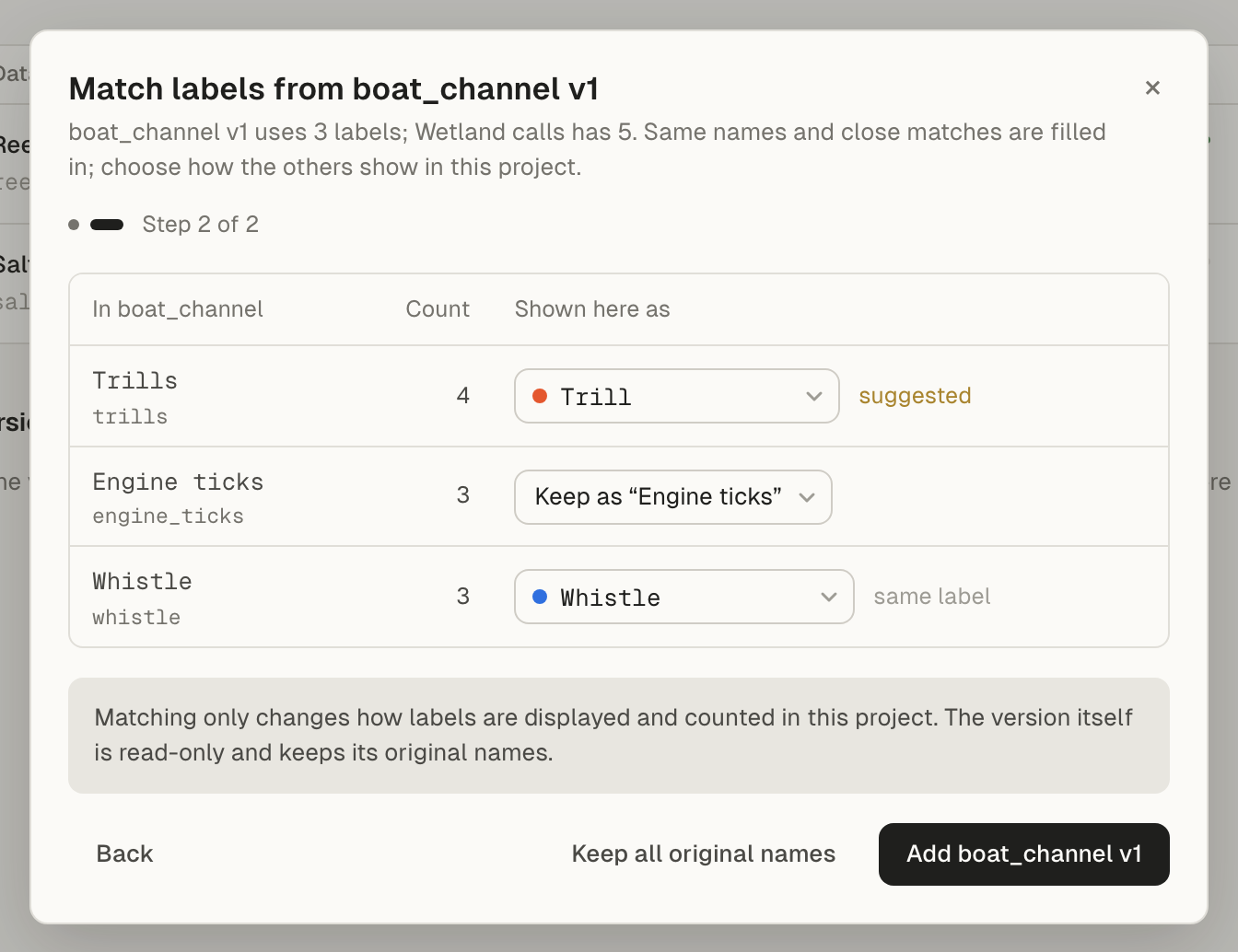
- If the project has several label sets, choose one under Match to.
- Labels with the same key or name are filled in (“same label”). Close matches are suggested (“suggested”).
- For each label, choose one of the set’s labels, Keep as its own name, or Leave out. Leaving a label out leaves its events out.
Click Add followed by the version’s name. Or click Keep all original names to add it now with every label under its own name.
Matching only changes how labels display and count in this project. The version itself keeps its original labels.
Afterwards
Section titled “Afterwards”The new dataset appears under Versions used from other projects, marked Read-only, with where it came from and how many labels matched.
To change how its labels show, click Change matching in the note that appears after adding it, or choose Change matching… in its ⋯ menu, or use the dataset’s Labels tab. Which labels were left out is settled when you add it. To change that, add the version again.