
Create your first project
Everything you do in Sift happens inside a project. This page explains what a project holds, then walks you through creating your first one.
What a project is
Section titled “What a project is”A project groups related work. It holds:
- Datasets: folders of recordings, with their events and everyone’s answers. Each dataset belongs to exactly one project.
- Label sets: named lists of labels. A new dataset starts from one of them.
- Models: detectors you register once and apply to datasets.
- Members (organisation projects only): the people who work in it, each with a role: manager, labeller or viewer.
A project never moves your audio. It only records where the audio is.
flowchart TB
  org["Organisation: people, owners and admins"]
  proj["Project: members with roles, label sets, models, assignments"]
  ds["Dataset: recordings, events, each person's answers"]
  ver["Published version: frozen and downloadable"]
  personal["Personal project: on one computer only"]
  org --> proj
  proj --> ds
  ds --> ver
  personal -.->|"Share to the organisation"| org
  classDef dashed stroke-dasharray: 4 3
  class personal dashed
There are two kinds of project:
| Personal project | Organisation project | |
|---|---|---|
| Where it lives | On this computer only | On your organisation’s hub, synced to every member’s app |
| Who sees it | Only you | Its members, the organisation’s owners and admins, and everyone in the organisation if the project is opened to them |
| Backed up | No | Kept on the hub. The hub’s backups are set up by whoever runs it. The standard setup backs it up every night, encrypted, to separate storage. Ask your organisation’s administrator. See Backups. |
| Members, assignments, Ask a colleague | No | Yes |
| Who can create one | Anyone | The organisation’s owners and admins |
In both kinds, the audio stays on each person’s computer. In an organisation project, each member links the dataset to their own copy of the audio.
Create a project on first run
Section titled “Create a project on first run”When there is no project on your computer yet, Sift opens Set up a project.
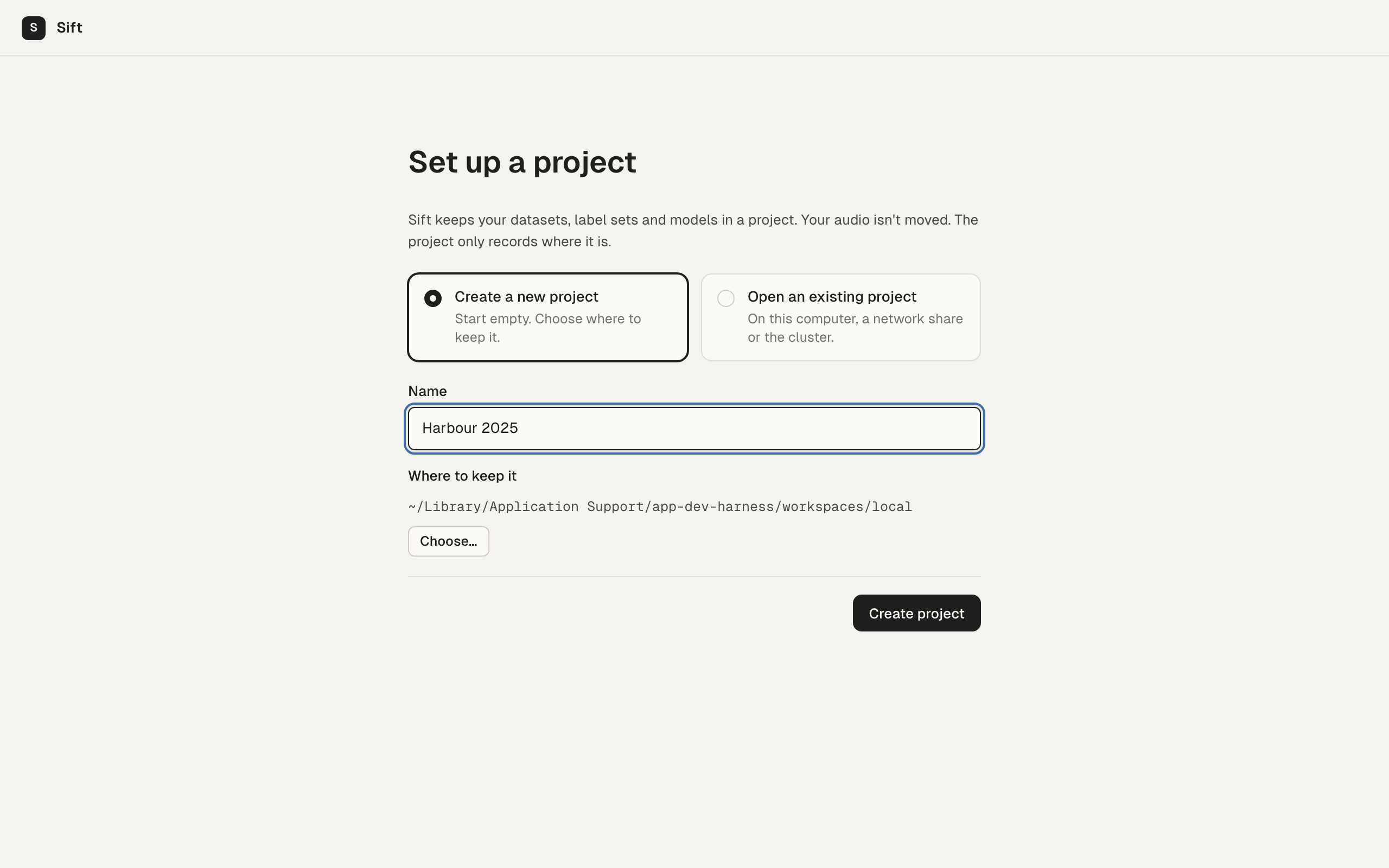
- Choose Create a new project.
- Type a Name, for example “Harbour survey”. You can change it later.
- Under Where to keep it, leave the default folder, or click Choose… to pick another folder. A drive, a network share or a cluster mount works too. Use the default puts it back.
- Click Create project.
Sift creates the project as one database file, project.db, in that folder, and opens the project’s home.
Open an existing project instead
Section titled “Open an existing project instead”If you already have a personal project, for example on a shared drive or from another computer, choose Open an existing project. Click Find project.db… and pick the project’s project.db file in the folder where it is kept.
The project home
Section titled “The project home”A new project’s home shows three steps, with the next one highlighted:
- Add a dataset. Point Sift at a folder of recordings. See Add your first dataset.
- Apply a model. Register a detector and run it on a dataset to get events to check. This step is optional: you can also draw boxes yourself. See Register a model.
- Start labelling. Open the labeller on your first dataset. See The labeller in 10 minutes.
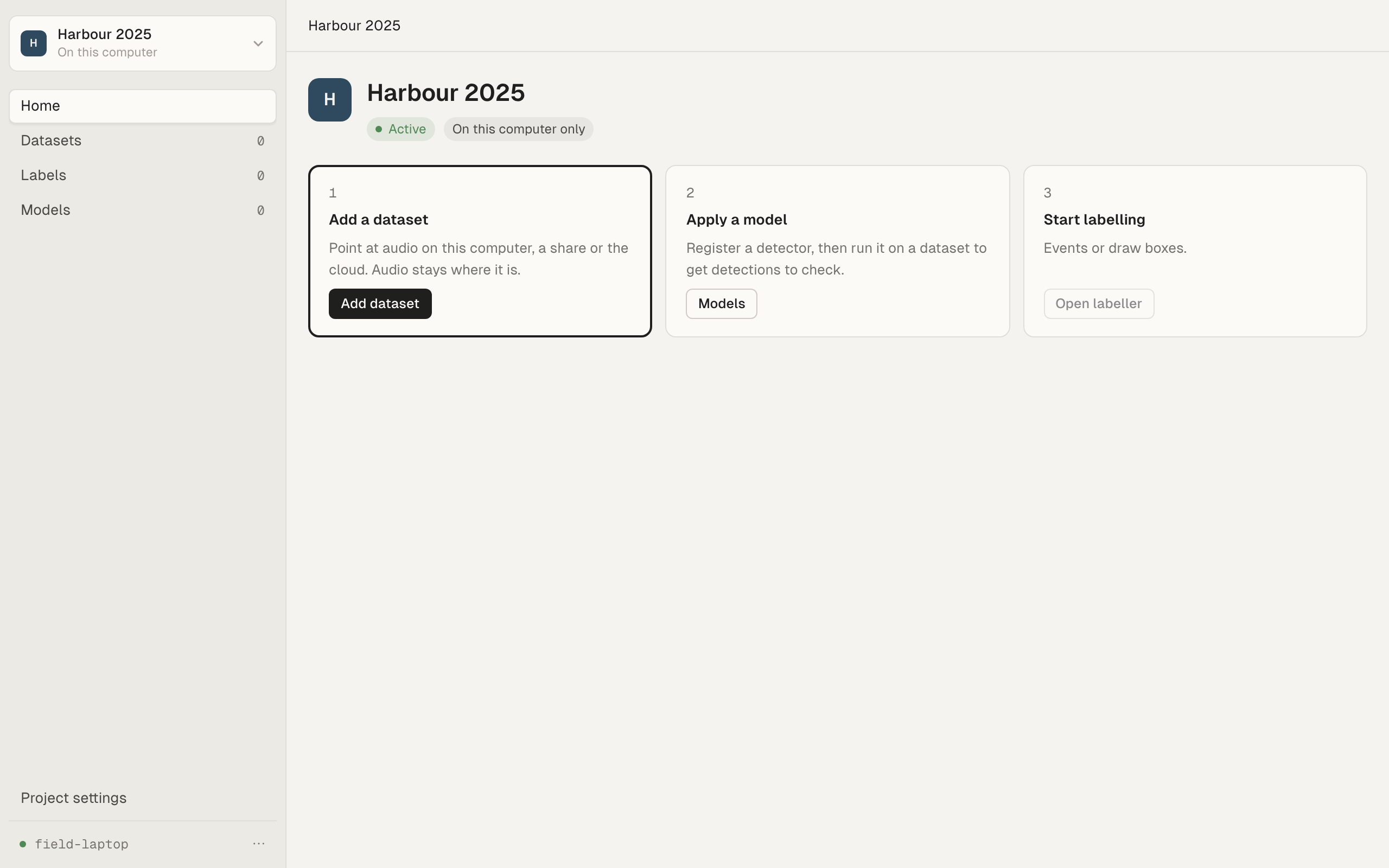
The home keeps these steps until the project has its first dataset. After that it shows what needs attention, labelling progress and recent activity.
Create more projects
Section titled “Create more projects”The project switcher sits at the top of the sidebar and shows the open project. Click it to:
- find a project by name with Find a project,
- switch to another project,
- create one with New project…,
- see every project with Browse all projects.
The list groups your organisation’s projects, then On this computer only (your personal projects), then Archived.
Personal or organisation
Section titled “Personal or organisation”When you are signed in to an organisation, New project asks Where it lives:
- Your organisation’s name: “Synced. Invite members and work together.” Only the organisation’s owners and admins can choose this. You need to have one of the organisation’s projects open first.
- Only this computer: a personal project. You can share it to the organisation later.
An organisation project has a second step: invite members from the organisation and give each a role (Labeller, Viewer or Manager), and choose what everyone else in the organisation may do. You become the project’s manager. You can click Skip for now and invite people later from Members. See Projects, members and roles.
When you use Sift without an organisation, every project is personal and New project doesn’t ask.
Remove or delete a personal project
Section titled “Remove or delete a personal project”Open Project settings and go to Danger zone. A personal project has two choices. Both ask you to type the project’s name to confirm.
Remove from this computer stops listing the project in Sift. Nothing is deleted: the project and its files stay where they are. To list it again, choose Open project… on Home or Open a project… in Project settings, and pick its project.db.
Delete project deletes the project for good: its datasets and their published versions, every answer and drawn box, and its label sets and registered models. Your audio files are not deleted. If some datasets have changes that aren’t published yet, the dialog warns you first. It can’t be undone.
Your default personal project, the one sharing to an organisation copies from, is handled differently, and the dialog says so. Its datasets are deleted, but its label sets and models are archived, not deleted. Its database stays on this computer, emptied, and Sift stops listing it.
If you already shared the project to an organisation, deleting your personal copy doesn’t touch the organisation’s project.
If you only want to stop work on a project, archive it instead. Nothing is deleted and you can restore it. See Archive and restore a project.
Organisation projects work differently. See Delete an organisation project.
Troubleshooting
Section titled “Troubleshooting”The organisation choice is greyed out. It says why: “Open one of its projects first”, or “Only its owners and admins create projects; ask one of them”. Ask an owner or admin to create the project and make you its manager, or create a personal project and have it shared later.
A project shows “Not connected”. Its folder can’t be reached right now, for example a drive that isn’t plugged in or a network share that isn’t mounted. Connect it and try again.
“Couldn’t open that project”. The file you chose isn’t a project Sift can open. Pick the project.db file inside the project’s folder.