
Disputes and settling them
Everyone answers for themselves. Nobody’s answer overwrites anyone else’s. When people disagree about an event, the event is disputed. Every answer stays side by side until someone settles it.
Disputes only happen in organisation projects. In a project on this computer only, there is just you, and your latest answer counts.
There are two kinds of dispute:
- A label dispute: people gave different answers to the same event.
- A bounds dispute: someone adjusted a box another person drew, so the two disagree on where the event is.
What makes a label dispute
Section titled “What makes a label dispute”You answer an event by choosing a label from the Label grid, Nothing or Unsure. A box you draw is your answer too. An event is disputed when, among the answers that count:
- two people choose different labels, for example Whistle and Click;
- one person chooses a label and another chooses Nothing or Unsure;
- one person chooses Nothing and another chooses Unsure.
Two answers agree only when they are the same choice, and for a label, the same label.
What makes a bounds dispute
Section titled “What makes a bounds dispute”When you move or resize a box someone else drew, Sift doesn’t change their box. It makes a box of your own for the same event, and the two are bounds disputed until someone keeps one. Before you do it, Sift asks “Make your own version of Lena’s box?”, unless you chose Don’t show this again. That choice is kept on this computer. See Drawing boxes and adjusting bounds.
While the dispute lasts, your box is the event. Theirs is drawn around it.
How an event’s status moves
Section titled “How an event’s status moves”stateDiagram-v2 [*] --> Unreviewed Unreviewed --> Confirmed: everyone chose the same label Unreviewed --> Rejected: everyone chose Nothing Unreviewed --> Uncertain: everyone chose Unsure Unreviewed --> Disputed: answers differ Confirmed --> Disputed: someone answers differently Rejected --> Disputed: someone answers differently Uncertain --> Disputed: someone answers differently Unreviewed --> Disputed: someone adjusts another person's box Disputed --> Ruled: a manager settles it Ruled --> Ruled: later answers are kept but change nothing Ruled --> [*]
- Unreviewed: nobody has answered yet.
- Confirmed: everyone chose the same label.
- Rejected: everyone chose Nothing.
- Uncertain: everyone chose Unsure.
- Disputed: answers differ, or the box disputes another person’s box.
- Ruled: a manager settled it. The ruling is a label, Nothing or Unsure, and it overrides every answer, for everyone.
A ruling stands. Answers given after it are kept in the event’s history, but they don’t reopen the dispute.
How disputes show
Section titled “How disputes show”In the labeller:
- In Events, the event’s box is drawn amber and labelled Disputed instead of a label.
- On a label dispute, managers see an Answers disagree panel above the labels (see Settle a label dispute). Everyone can still answer: your answer is added beside the others.
- On a bounds dispute, Events shows a Bounds disputed notice above the answer buttons. See Settle a bounds dispute.
- In Recording, the selected detection’s panel shows a Disputed badge.
- The session’s progress bar counts Disputed events beside the others (not when you’re working through an assignment).
To see who said what:
- The Conversation panel lists what people said about the recording’s events, including every answer on a disputed event. Choose its Disputed filter to see only those.
- The About this event button beside the event’s name opens its history: what the model said, each person’s answer, any adjusted bounds, and any ruling (“A manager ruled”, or “You ruled”).
See The Events view for these panels.
Find disputes
Section titled “Find disputes”The project home lists disputes under Needs attention, one row per dataset, for example “3 disputes in Saltmarsh North” with “Lena and Luis disagree. Needs a Manager to decide.” Project managers see a Decide button.
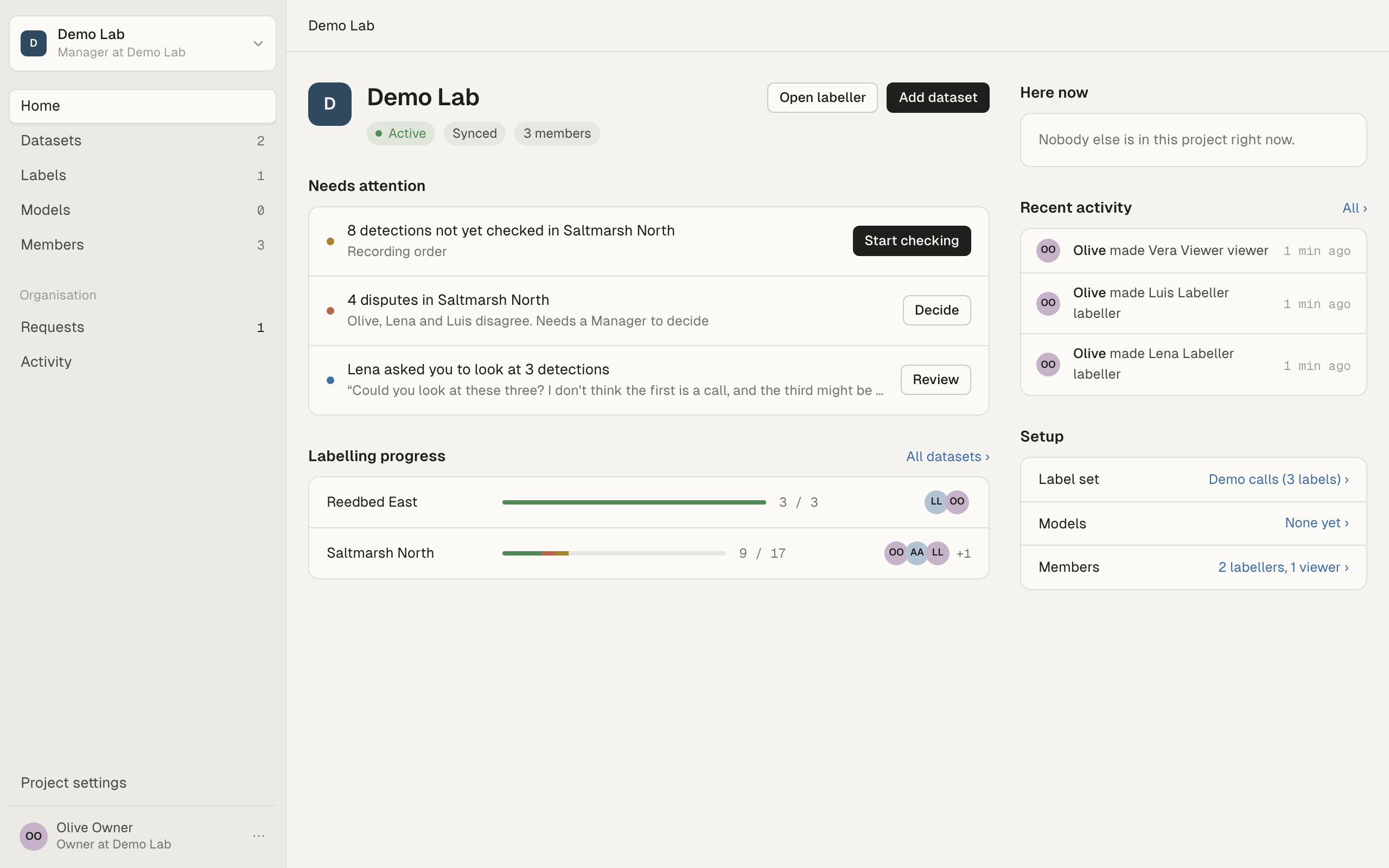
Decide opens Events on that dataset showing only disputed events, over the whole dataset. This view is one-off: it doesn’t change your saved session or your assignment.
You can also:
- choose Disputed in the event picker of any session;
- give someone the disputed events as an assignment with Show set to Disputed (see Assignments).
Who can settle
Section titled “Who can settle”Settling is for the project’s managers. Organisation owners and admins are managers of every project. See Projects, members and roles. Only managers see the settling controls in Events. Labellers see that an event is disputed, from the amber Disputed tag on its box, but can’t settle it.
Settle a label dispute
Section titled “Settle a label dispute”- Open the event in Events, for example from Decide on the project home, or by stepping to it. Its box is tagged Disputed.
- The Answers disagree panel above the labels has one Keep button for each different answer, with who gave it, for example “Keep Click (Luis, Lena)” and “Keep Unsure (You)”.
- Choose the answer that stands.
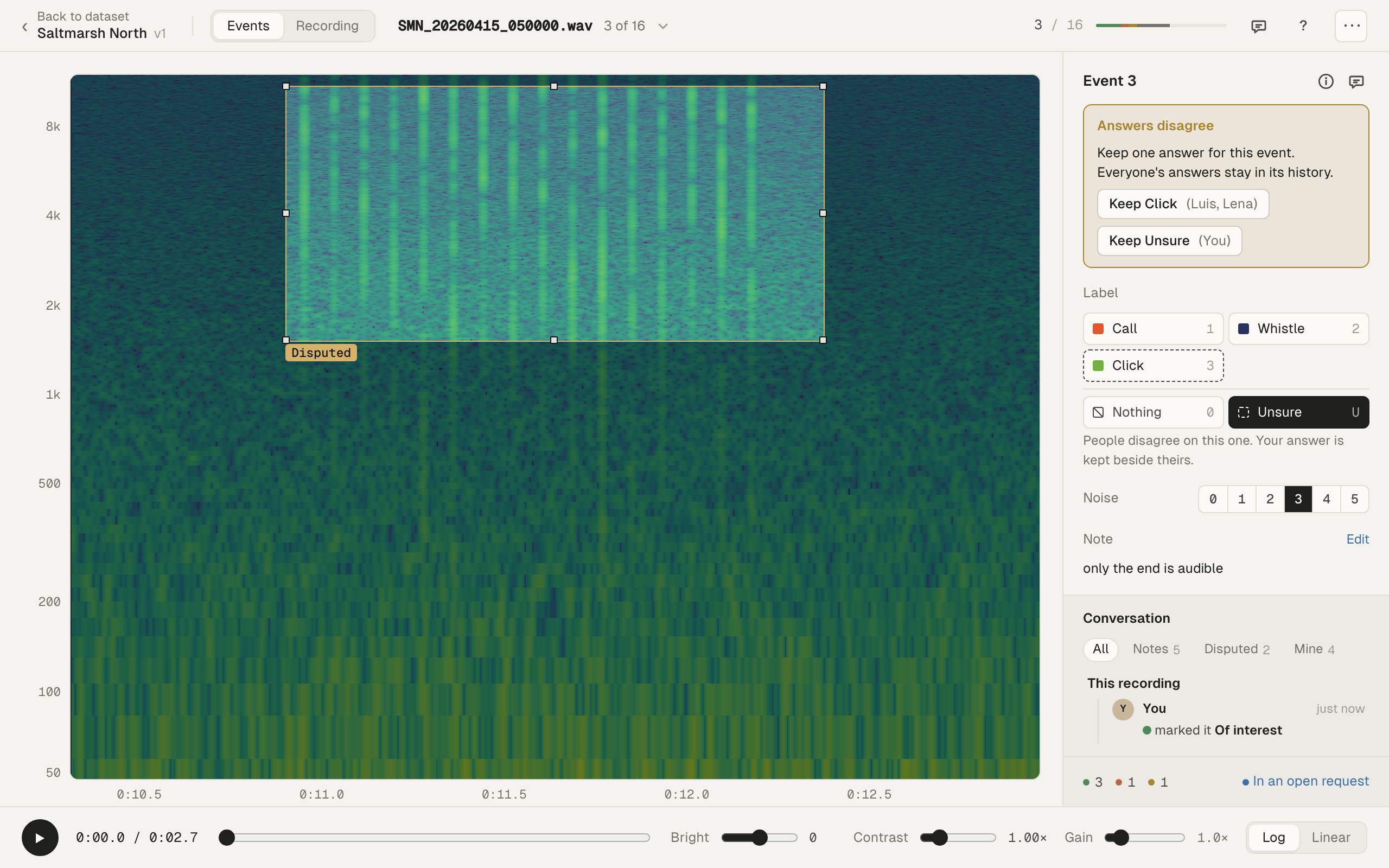
Your choice is a ruling: it settles the event for everyone. The box then shows the label you kept, and the panel shows “Settled as” that label. Everyone’s answers stay in the event’s history, which says “A manager ruled” and what.
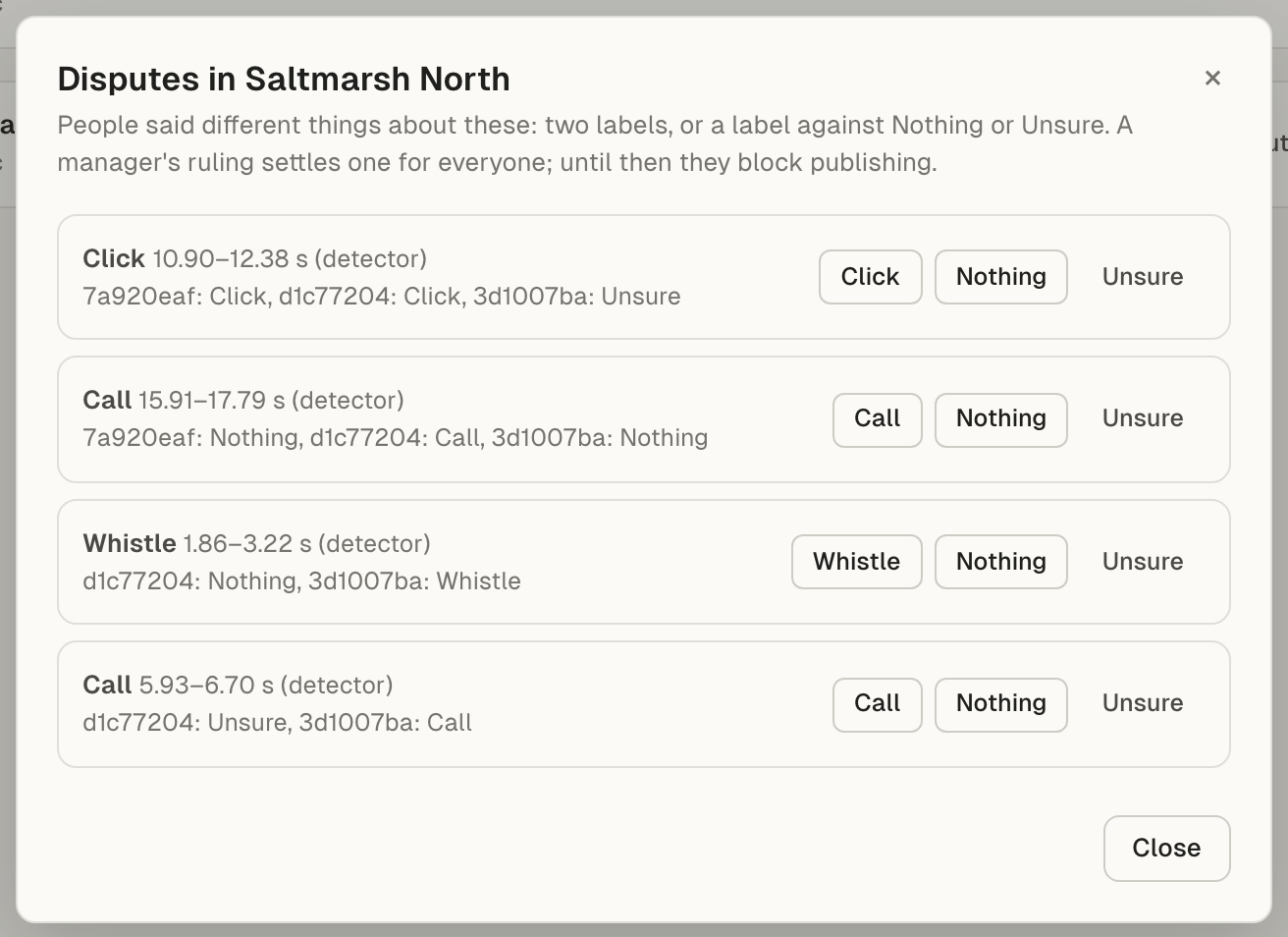
You can also rule from the organisation home: open Datasets, then Disputes next to the dataset. That list is for organisation owners and admins, and names people by a short id instead of their name.
Withdraw a ruling
Section titled “Withdraw a ruling”On a settled event, managers see “Settled as” and the label, with Withdraw ruling. Withdrawing it lets the answers decide again. If they still disagree, the event is disputed again and the Answers disagree panel comes back.
Settle a bounds dispute
Section titled “Settle a bounds dispute”Open the event in Events, for example from Decide. The Bounds disputed notice says whose box this one disputes, for example “This box disputes Lena’s box: they differ on where the event is.”
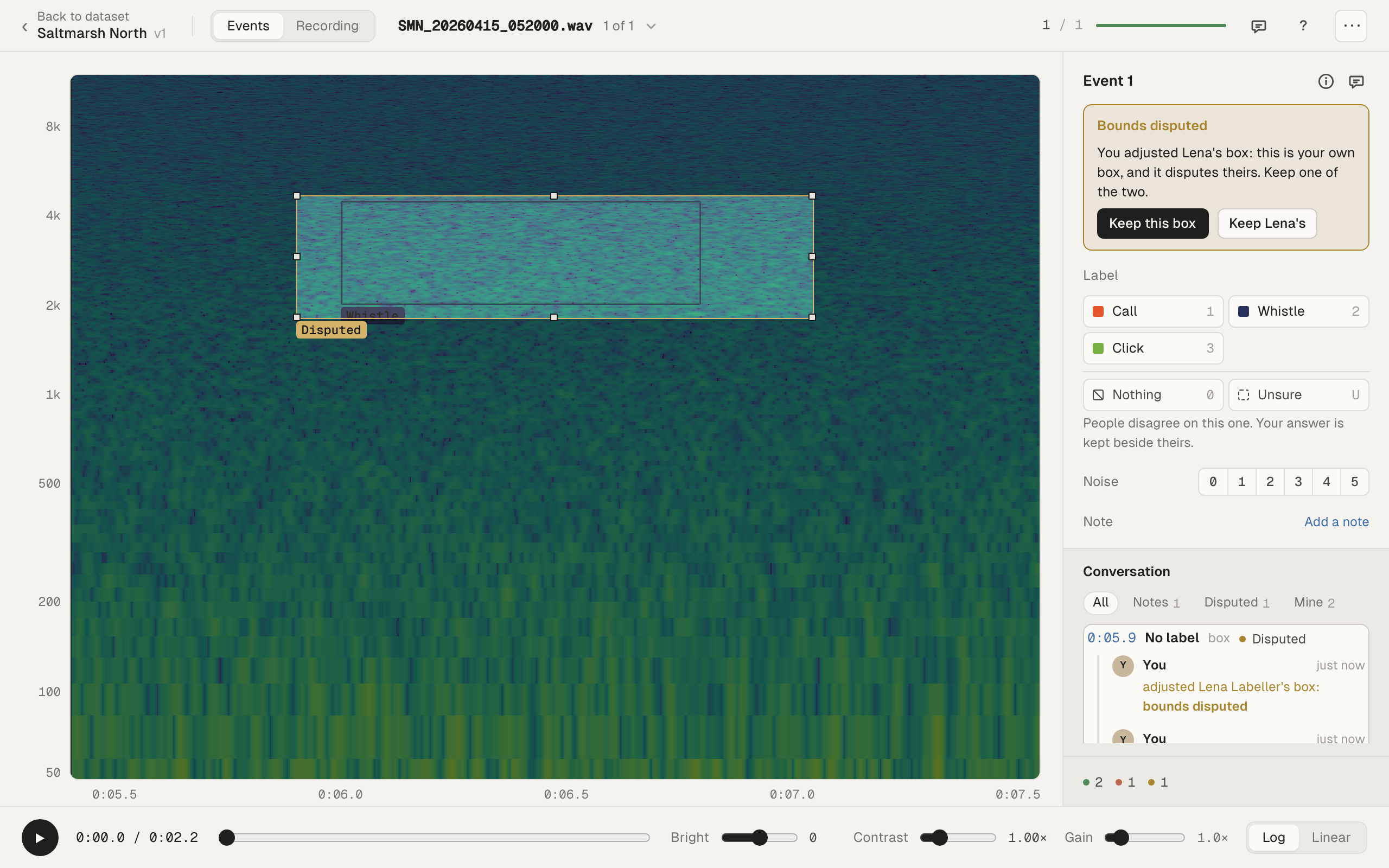
If you can settle it, you see two buttons:
- Keep this box: this box is the event from now on. Sift records it as a ruling that confirms this box with its own label. The other box stays in the event’s history.
- Keep name’s: this box is deleted, and the other person’s box is the event again, with its own answers.
If you made the box and can’t settle it, the notice says “You adjusted Lena’s box: this is your own box, and it disputes theirs.” and you see Withdraw mine. It deletes your box, and theirs is the event again.
If you didn’t make the box and can’t settle it, the notice says a manager keeps one of the two.
Answers on the earlier bounds
Section titled “Answers on the earlier bounds”When you resize your own box a lot, earlier answers stop counting. A change is large when the old and new box overlap by less than half, in time and frequency together. Sift then:
- says “A large change: earlier answers no longer count”, with Undo;
- counts your own answer again, as the box’s label on the new bounds;
- keeps everyone else’s earlier answers in the history, but leaves them out until they answer again.
Each of those people sees “Your answer was about the box before a large change: answer again.” on the event. An old answer that no longer counts can’t make or keep a dispute. See Large changes.
Disputes and publishing
Section titled “Disputes and publishing”A version can’t be published while events are disputed. The publish dialog says how many, and gives you two choices:
- Settle them first, then publish.
- Tick Leave these N disputed annotations out of version. The version then lists exactly which events were left out.
See Published versions and exports.
Let the latest answer count
Section titled “Let the latest answer count”Some teams prefer not to settle label disputes by hand. Each organisation dataset has a policy, When reviewers disagree:
- Disputed until someone rules (the default). Settings calls it It’s disputed until an admin rules. The organisation home calls it It’s disputed until a manager rules.
- The latest answer counts: the most recent answer is the event’s answer, and label disputes don’t arise. Settings calls it The latest verdict counts. The organisation home calls it The latest answer counts.
Bounds disputes still need settling under either policy. A ruling still overrides every answer.
You can change it in two places:
- In the dataset’s Settings tab, under Organisation policies. The project’s managers can change it there. Everyone else sees “Only the project’s managers change these.”
- On the organisation home’s Datasets page, with Policies next to the dataset. Only organisation owners and admins can change it there. Others see “Only admins and owners change these.”
Troubleshooting
Section titled “Troubleshooting”No Decide button. Only the project’s managers see it.
“An admin settles this” in the Disputes list. Only organisation owners and admins can rule there. Ask one of them.
“Your answer was about the box before a large change: answer again.” Someone resized the box a lot, so your earlier answer no longer counts. Answer again.
New answers after a ruling. A ruling stands. Answers given after it are kept in the event’s history but don’t reopen the dispute.