
Noise, notes and recording marks
Besides answering what an event is, you can add three kinds of extra information. All of them are optional.
- A noise rating: how noisy the call is.
- A note: anything worth saying about an event or a box.
- A recording mark: what you think of a whole recording.
Noise rating
Section titled “Noise rating”The panel’s Noise row has six levels, 0 to 5. The names come from the dataset’s noise scale. The built-in scale runs from Clean to Buried in noise. A dataset can use its own scale from its label set. Hover over a level to see its name.
- Click a level, or press Shift+0 to Shift+5.
- Pick the same level again to clear it.
- A level the dataset’s scale doesn’t have is greyed out.
Where the rating goes:
- In Events, it is part of your answer on the event. You can rate an event before or after you answer it. The rating alone doesn’t move you on.
- In Recording, it goes on the selected box, or on your answer for the selected detection.
Press N, or choose Add a note in the panel, and type. The note saves as you type. Press Esc or choose Done to stop editing. Choose Edit to change it later.
- In Events, the note goes with your answer. On a box you drew yourself, it is the box’s own note.
- In Recording, it goes on the selected box, or with your answer for the selected detection.
Notes show in the Conversation at the bottom of the panel, tied to their box or detection. In Events, the strip of events marks an event with a note with ✎.
Two versions of one note
Section titled “Two versions of one note”If two people edit the same box’s note at the same time, for example both offline, neither edit is lost. The panel says “N versions of this note”, written at the same time, and lists each with who wrote it. In Events it says “N versions of this note were written at the same time; both are in the note below.” Editing the note keeps one note: read both, write the note you want, and the versions go away.
Recording marks
Section titled “Recording marks”A mark is what you think of a whole recording:
- Of interest: worth everyone’s time.
- Nothing here: you went through it and there is nothing to box.
Marks are set in Recording, from the top bar’s Recording and view options menu (⋯), under This recording.
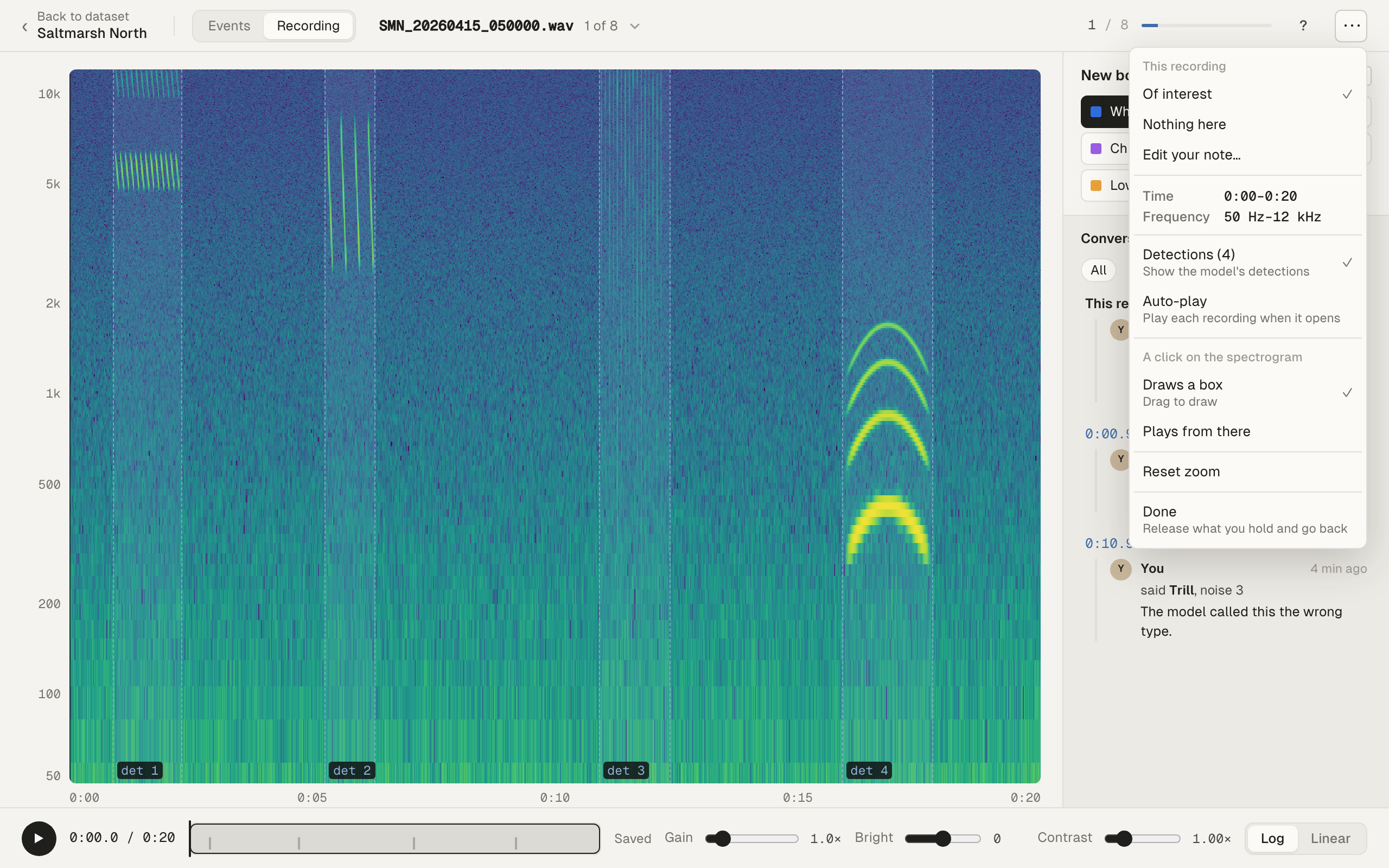
| Do this | Key |
|---|---|
| Mark the recording Of interest | I |
| Mark the recording Nothing here | 0 |
| Withdraw your mark | The same key again |
| Write or edit your mark’s note | Shift+I (or Shift+0) |
The keys work when no box or detection is selected. With a detection selected, 0 answers it Nothing instead. Press Esc to deselect first.
Add a note… opens A note on this recording. The note goes in the conversation with the recording’s mark. Marks and their notes appear only there, in a group called “This recording”.
The default mark is shown, not saved
Section titled “The default mark is shown, not saved”Until someone marks a recording, the menu shows a default:
- Nothing here while the recording has no boxes and no detections.
- Of interest once it has a box or a detection.
The default is only shown. It is not saved as anyone’s mark. Filters and the start screen’s options go by the marks people actually set.
Everyone’s marks
Section titled “Everyone’s marks”Each person has one mark per recording. Everyone who can read the dataset sees every mark. When people disagree, the recording is Mixed. Sift never settles a Mixed recording on its own: one person’s Nothing here doesn’t hide another person’s Of interest.
What marks are used for
Section titled “What marks are used for”On the labeller’s start screen:
- Recording card: Recordings can be In order, Of interest first, or Only Of interest. Skip Nothing here leaves out recordings everyone marked Nothing here. Mixed ones stay.
- Events card: Skip events in Nothing-here recordings leaves out the events in those recordings.
The dataset’s Recordings tab can filter and sort by marks, and mark several recordings at once. Its Marks column shows each recording’s mark and how many people marked it. Hover over it to see who marked it, and their notes. See Datasets.
On a request about recordings
Section titled “On a request about recordings”When a colleague asks you by name about recordings, 0 means No calls in this recording instead. It answers the recording without a box. See Ask a colleague.
No calls in this recording is your Nothing here mark on the recording. It syncs like any other mark, so your team sees it. If you have no boxes on the recording, the person who asked sees that you marked it Nothing here, with your note if you wrote one. If you had already marked the recording Of interest, choosing No calls replaces that mark but keeps your note. Press 0 again to take it back: your earlier mark, if you had one, comes back.
Drawing a box on the recording takes it back too, because the box answers it. Once you have a box there, the button is greyed out.
A request to a dataset has no No calls in this recording button. There, 0 marks the recording Nothing here, as it does outside requests.