
Missing audio and finding it again
Sift remembers where each recording’s file is on this computer. If the file is no longer there, the recording’s audio is missing. Its events, answers and marks are safe. You just cannot listen to it until Sift finds the file again.
This page is about recordings in folders and on network drives. Google Drive recordings are never “missing” in this sense: they are fetched from Drive. See Google Drive datasets.
Why audio goes missing
Section titled “Why audio goes missing”- A drive is not connected. An external drive is unplugged, or a network share is not mounted.
- Files moved. The folder was moved, renamed or copied somewhere else, or the files were converted to FLAC.
- Another computer. Where a file is stays on the computer that found it. It is never synced. When a colleague opens an organisation’s dataset, or you open it on a second computer, Sift has to find the files on that computer’s drives.
When you open Find missing audio, Sift first looks on this computer’s drives for the dataset’s folders. If it finds one, it offers it at the top with Use this folder.
Where you see it
Section titled “Where you see it”On the Recordings tab. A notice says how many recordings cannot be found, grouped by drive or folder:
- “N files moved or deleted from …” (the drive is there, but the files are not),
- “N files on … (connect the drive)” or “(network share not mounted)”,
- “N files were never located on this computer”.
The Audio column shows Missing or Not here for those recordings. The Show menu has Not on this computer.
If a drive is simply unplugged, plug it back in. Sift finds the files at the same place again.
In the labeller. A missing recording shows “This recording isn’t on this computer”, with its last known path and why. Click Skip to next available to keep labelling, or Fix missing audio to look for it. Nobody can answer an event they cannot hear.
Find missing audio
Section titled “Find missing audio”- On the Recordings tab, click Find missing audio… in the notice. To look for one drive’s files only, click Find these… next to its group. From the labeller, click Fix missing audio.
- Looking for says which recordings Sift will look for. When the dialog was opened for one drive, you can untick Only recordings that were on that drive to look for all of them.
- Under Where they are now, click Choose folder… and pick a folder, or a whole drive.
- Click Look for files. Sift reads the folder. Only files shaped like a missing recording are decoded, so a whole drive is quick to look through.
- Read what it found. Nothing has changed yet.
- Click Use N files to apply it, Look somewhere else to try another folder, or Cancel.
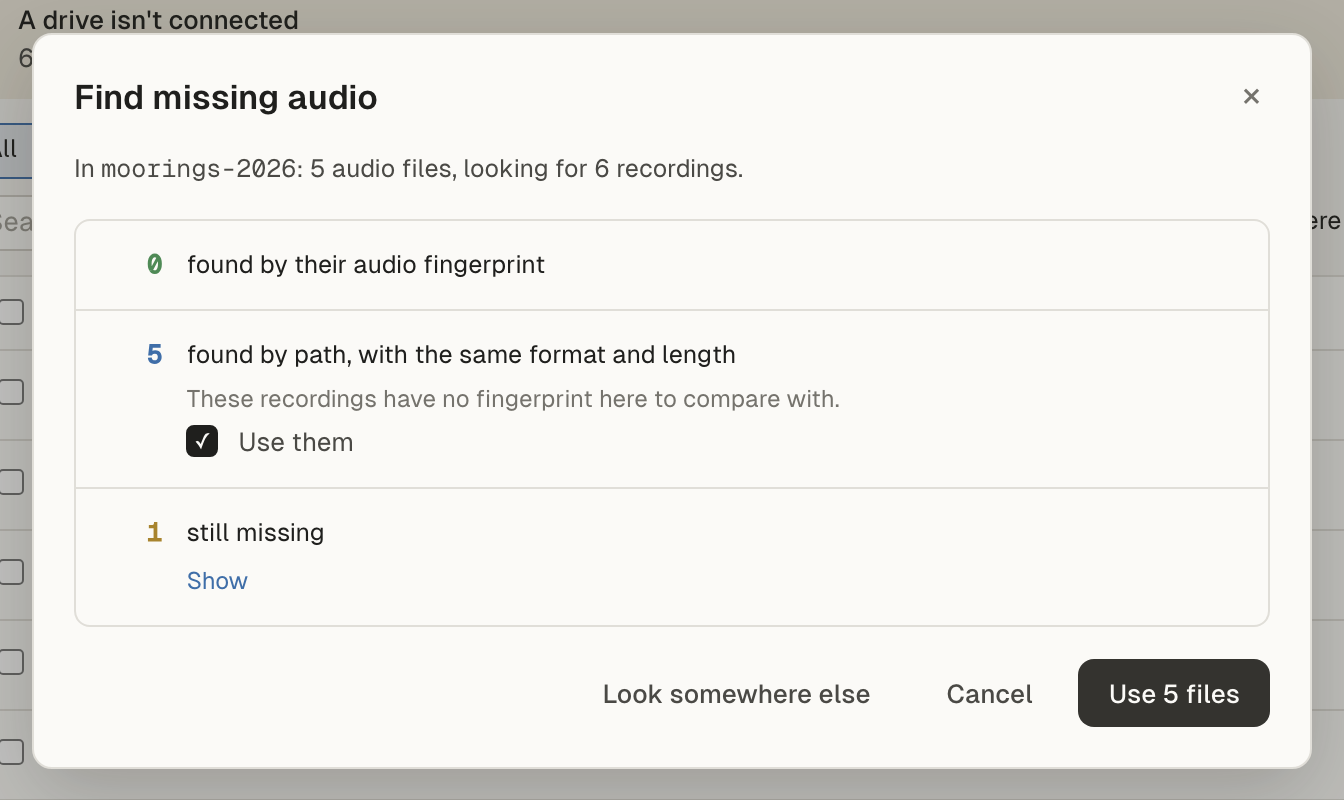
Afterwards a notice says how many recordings were found and how many are still missing. The labeller reads the same event or recording again in place.
How files are matched
Section titled “How files are matched”flowchart TD
M["A missing recording"] --> FP{"Does it have an audio fingerprint?"}
FP -- "Yes" --> F1{"A file with the same audio?"}
F1 -- "Yes" --> OK1["Found by fingerprint"]
F1 -- "No, but a file has its name" --> DIFF["Reported: same name, other audio.<br/>Never used."]
F1 -- "No" --> MISS["Still missing"]
FP -- "No" --> P{"A file at the same relative path,<br/>same format and length?"}
P -- "Yes" --> OK2["Found by path"]
P -- "No" --> N{"A file with its name that no other<br/>missing recording shares,<br/>same format and length?"}
N -- "Yes" --> OK3["Found by name"]
N -- "No" --> MISS
OK1 --> APPLY["Nothing changes until<br/>you click Use N files"]
OK2 --> APPLY
OK3 --> APPLY
A recording gets its fingerprint when its dataset is shared into an organisation (folder datasets), or when it is first downloaded whole (Google Drive). Until then it is matched by path, then by name, and a file that was both renamed and moved is not found.
- Fingerprint. A file with the recording’s audio. This finds renamed and moved files, and lossless FLAC copies of WAVs.
- Path. A file whose path ends with the recording’s path inside the dataset. A changed extension counts, so
site/0001.wavmatchessite/0001.flac. - Name. A file with the recording’s file name that no other missing recording shares.
Path and name matches must have the recording’s sample rate, channels and length. They are used only for recordings with no fingerprint to compare. Length alone never matches, because recorders write files of equal length.
A recording with a fingerprint is matched only by its audio. If a file has its name but different audio, the dialog lists it (“a recording’s name but other audio, and won’t be used”).
Reading the results
Section titled “Reading the results”- found by their audio fingerprint: safe to use.
- found by path or name, with the same format and length: these recordings have no fingerprint here to compare with. Untick Use them to leave them out.
- still missing: click Show to list them.
- files have a recording’s name but other audio: never used. Click Show to see which.
- Files that could not be read are counted, with the first reason.
Troubleshooting
Section titled “Troubleshooting”Nothing is found, but the files are there. Check you picked the folder that holds them, or a folder above it. If the files were re-encoded with loss, their audio no longer matches. Only lossless copies match by fingerprint.
Some files have a recording’s name but other audio. They are different recordings, or edited copies. Find the original files.
It works on one computer but not another. That is expected. Each computer finds its own files once. Run Find missing audio on the other computer too.